
You click a link, the progress bar crawls along, and then it stops with a grey line: Failed – Network error. The Chrome download failed network error is one of the most common download problems on Windows, and it is frustrating because the message tells you almost nothing. The good news is that it is rarely a sign of anything serious. In most cases the connection between your PC and the file server simply dropped for a moment, and Chrome gave up instead of trying again.
This guide walks through what the error actually means, the nine fixes that solve it most often, and how to stop large downloads from failing in the first place.
What the Chrome download failed network error means
A browser download is a single, long connection to the server. If that connection is interrupted for any reason, Chrome marks the file as failed. The interruption can come from your Wi-Fi, your router, your internet provider, a VPN, the server itself, or software on your PC that inspects traffic, such as an antivirus or firewall.
Google’s own guide to fixing download errors lists “Network failed” alongside errors like “Disk full”, “Forbidden” and “Virus scan failed”. Each of those has a different cause, so it is worth reading the exact wording on your failed download before you start changing settings.
| Message in Chrome | Most likely cause | First thing to try |
|---|---|---|
| Failed – Network error | Connection dropped mid-download | Resume or retry the download |
| Failed – Disk full | Not enough space on the target drive | Free up space or change the folder |
| Failed – Forbidden | The link expired or needs a login | Sign in and get a fresh link |
| Failed – Virus scan failed | Antivirus blocked or could not scan the file | Check your antivirus quarantine |
| Failed – Insufficient permissions | Chrome cannot write to the folder | Save to Downloads or Desktop instead |
9 fixes for the network error
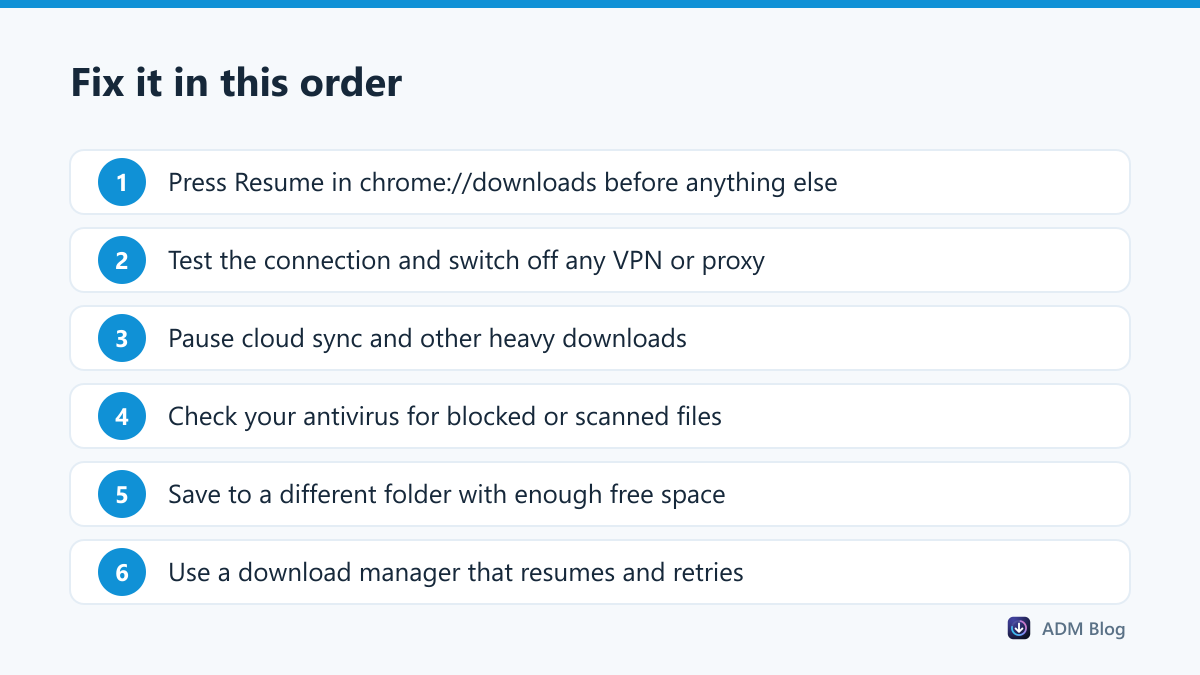
Work through these in order. The first three solve the problem for most people in under a minute.
1. Resume the download instead of starting over
Open chrome://downloads (or press Ctrl + J) and look for a Resume button under the failed file. If the server supports partial downloads, Chrome continues from where it stopped. If you only see Retry, the download restarts from zero.
2. Check that your connection is stable
Run a quick test on a site like Speedtest and watch for drops. If you are on Wi-Fi, move closer to the router or plug in a cable for large files. Restarting the router clears many short outages that only show up during long downloads.
3. Turn off your VPN or proxy for a moment
VPNs and proxies add another hop that can time out. Pause the VPN, retry the download, and turn it back on afterwards. If the file only fails with the VPN on, try a different server location.
4. Stop other heavy traffic
Cloud sync apps, game launchers and video streams compete for the same bandwidth. Pause OneDrive, Steam or any other large transfer until your download finishes.
5. Check your antivirus and firewall
Some security tools scan downloads while they arrive and cut the connection if the scan stalls. Look in your antivirus history for the file. If you trust the source, allow it and download again rather than disabling protection completely.
6. Save the file somewhere else
A full or protected drive can show up as a network failure on some systems. Go to Settings > Downloads, click Change and pick a folder on a drive with plenty of free space.
7. Clear the cache and disable extensions
A corrupted cache or an extension that rewrites requests can break downloads. Try the same link in an Incognito window. If it works there, disable your extensions one by one to find the culprit.
8. Get a fresh link
Many file hosts generate links that expire after a few minutes or hours. If the download fails at the same point every time, reload the source page and copy the link again.
9. Use a download manager for large files
Browsers are built for browsing, not for moving multi-gigabyte files over shaky connections. A dedicated download manager keeps track of every byte already received, resumes after a drop, and can retry automatically.
How to stop downloads failing again
If you often download large installers, disk images or videos, a few habits make failures rare:
- Use a wired connection for anything over a few gigabytes.
- Schedule big downloads for times when nobody else is streaming.
- Keep at least twice the file size free on the target drive.
- Use a tool that can pause, resume and retry without losing progress.
Advanced Download Manager was built for exactly this. It splits each file into several parts, downloads them in parallel, and lets you pause, resume and retry from the download list. With the browser add-on installed, you right-click a link and choose “Download with ADM” instead of letting Chrome handle it.
Frequently asked questions
Why does Chrome say network error when my internet works?
Browsing uses many short connections, so a two-second drop goes unnoticed. A download uses one long connection, and the same short drop is enough to fail it. The internet can look fine while large downloads still fail.
Can I recover a download that already failed?
Sometimes. Open chrome://downloads and press Resume if it is offered. If only Retry is available, the partial file cannot be continued and the download starts again.
Does the network error mean the file is infected?
No. A virus warning appears as “Virus detected” or “Virus scan failed”. The network error only means the transfer was interrupted.
Is it safe to turn off my antivirus to finish a download?
It is better not to. Add a one-time exception for a file from a source you trust, or download it with a manager and scan it before you open it.
The Chrome download failed network error is almost always a connection problem, not a broken file. Resume first, fix the connection second, and move big downloads to a manager that can pick up where it left off. That way you will rarely see the Chrome download failed network error again.