
By default every browser on Windows drops files into the same Downloads folder, which quickly turns into a mess of installers, PDFs and videos. Knowing how to change download location lets you send files to a bigger drive, a synced folder or a project folder instead. This guide shows how to change download location in Chrome, Edge and Firefox, how to make the browser ask every time, and how to move the Windows Downloads folder itself.
Why change where downloads go?
- Free up the system drive. Large downloads can fill a small SSD and slow Windows down.
- Stay organized. Work files, media and installers can each go to their own place.
- Avoid failed downloads. A nearly full drive is a common cause of “Disk full” and even network errors, as we explained in our guide to the Chrome download failed network error.
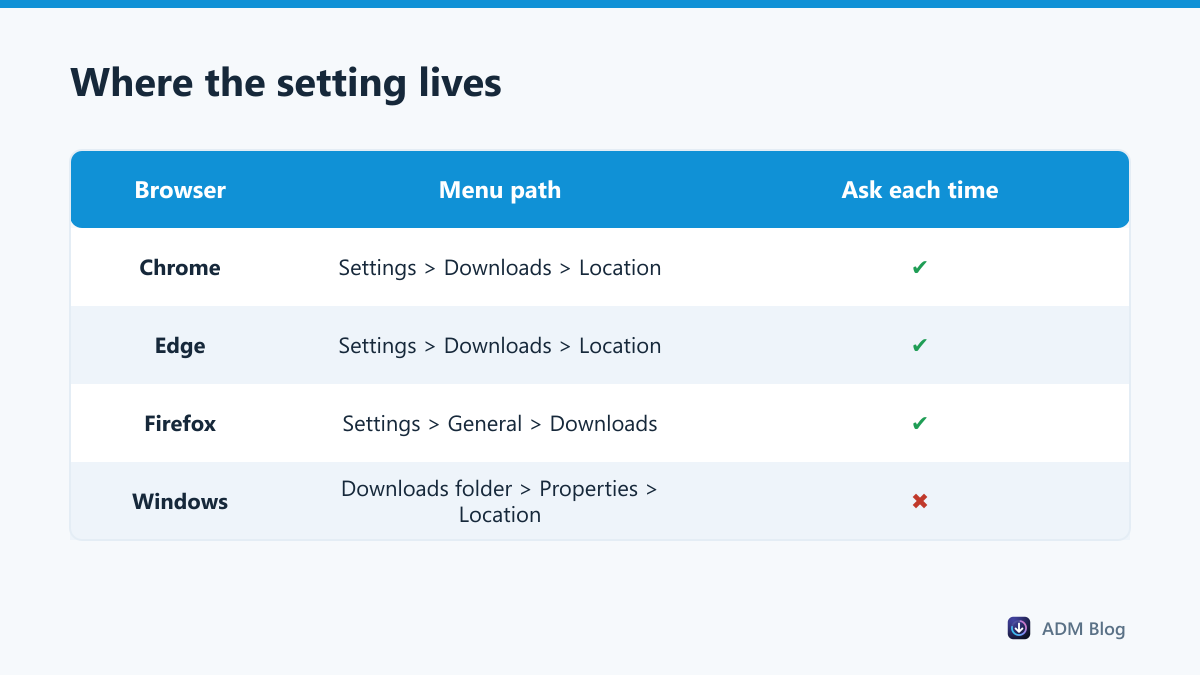
Change download location in Chrome
- Click the three-dot menu at the top right and choose Settings.
- Select Downloads in the left menu.
- Next to Location, click Change and pick a folder.
- Optional: turn on Ask where to save each file before downloading.
These steps match Google’s official instructions. You can also type chrome://settings/downloads into the address bar to jump straight to the page.
Choosing a download folder in Microsoft Edge
- Open the Settings and more menu (three dots) and choose Settings.
- Select Downloads.
- Under Location, click Change and choose a folder.
- Optional: switch on the option to ask where to save each file before downloading.
Microsoft documents the same steps in its guide to changing the downloads folder in Edge. The shortcut is edge://settings/downloads.
Choosing a download folder in Firefox
- Open the menu (three lines) and choose Settings.
- In the General panel, scroll to Files and Applications.
- Next to Save files to, click Browse and choose a folder.
- Or select Always ask you where to save files.
Mozilla’s help article on managing downloaded files has more detail if the option looks different on your version.
Comparison: fixed folder or ask every time?
| Option | Best for | Downside |
|---|---|---|
| One fixed folder | Quick everyday downloads | Everything piles up in one place |
| Ask where to save each file | Sorting files as you go | An extra click for every download |
| Folder on a second drive | Large videos, games and disk images | Files are missing if the drive is unplugged |
| Synced cloud folder | Getting files on every device | Big downloads also upload, using bandwidth twice |
Move the Windows Downloads folder
Changing the browser setting only affects that browser. If you want every program that uses the standard Downloads folder to follow, move the folder itself:
- Open File Explorer, right-click Downloads and choose Properties.
- Open the Location tab and click Move.
- Pick the new folder, click Apply and agree to move the existing files.
Choose an empty folder as the target. Pointing Downloads at the root of a drive or at another special folder can mix files together in a way that is hard to undo. If you ever want to go back, the same Location tab has a Restore Default button.
What makes a good download folder
Where you send files matters as much as how you get them there. A few rules keep downloads fast and easy to find:
- Plenty of free space. Keep at least twice the size of your biggest download free, because some files are unpacked or copied after they arrive.
- A local drive. Network shares and sleeping external drives can disconnect in the middle of a transfer and make the download fail.
- A short, simple path. Very long folder paths and unusual characters can cause errors with some installers and archives.
- Not a synced folder for huge files. OneDrive or Dropbox will start uploading a 20 GB file as soon as it lands, which slows everything else down.
- Something you back up. If you keep important documents in Downloads, make sure that folder is included in your backups.
Setting the folder in a download manager
A download manager has its own save location. In Advanced Download Manager you choose the download folder once in the settings, and every file you send from the browser with a right-click goes there. That keeps large downloads on the drive you picked, even if the browser still saves small files to the default folder. For large files it also helps with speed; see our tips to fix slow download speed.
Frequently asked questions
Will changing the location move files I already downloaded?
No. The browser setting only affects new downloads. Existing files stay where they are unless you move them yourself.
Can I use a different folder for each file type?
Not with the built-in settings. Turn on “ask where to save” and pick the folder each time, or sort files afterwards.
Why can’t Chrome save to the folder I chose?
The folder may be protected or on a drive that is no longer connected. You will usually see “Insufficient permissions”. Choose a folder inside your user profile or on a connected drive.
Can I save downloads straight to an external drive?
Yes. Pick a folder on the external drive as the location. Keep the drive connected, or downloads will fail or fall back to the default folder.
It only takes a minute to change download location in any browser, and it saves a lot of hunting for files later. Pick a drive with space, decide between a fixed folder and asking each time, and revisit the setting whenever your needs change.