
Edge downloads not working splits into four quite different problems, and the fix depends on which one you have. Either nothing starts at all, or transfers start and then fail, or only certain file types fail, or a single site refuses to give you anything. Treat them as one problem and you end up resetting a browser that was never broken, so start by deciding which of the four you are looking at.
First, find out which failure it is
Open the downloads list with Ctrl+J and watch one download from the beginning. An entry that never appears is a different fault from one that appears and turns red. Microsoft’s page on where your browser saves downloads shows the Settings path you will need for the first two checks: Settings and more, then Settings, then Downloads.
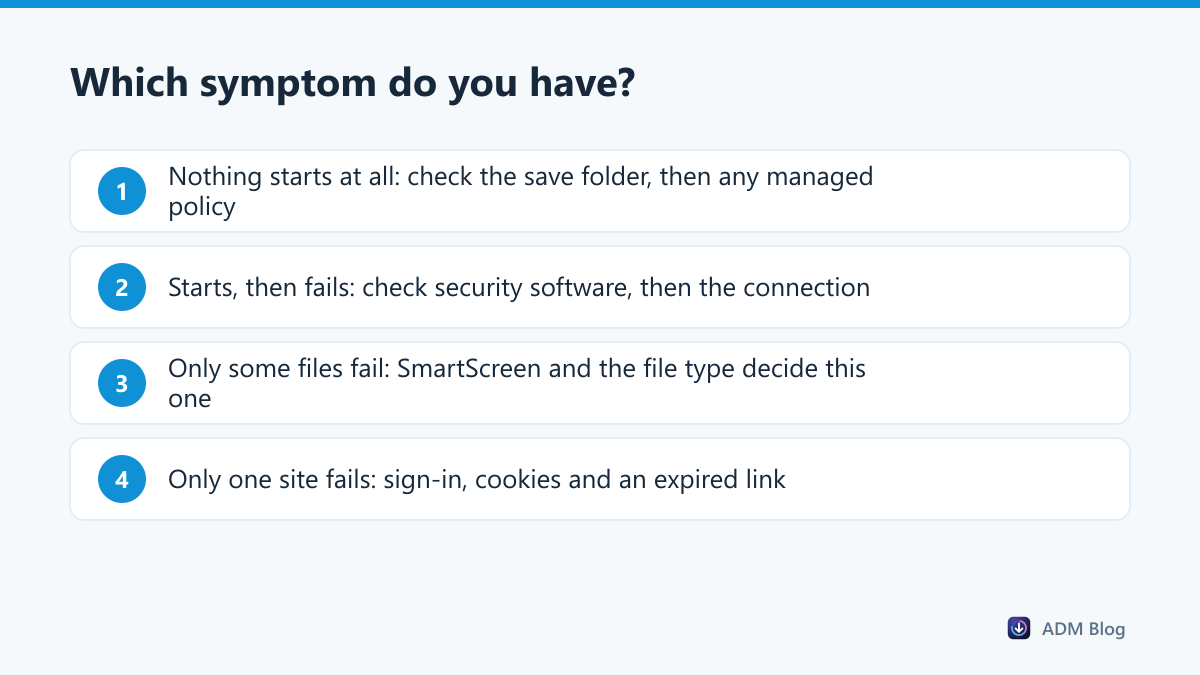
Put what you see into one of these four groups before going further:
- Nothing happens. No entry appears in the list at all, and no file lands anywhere.
- It starts, then fails. The entry appears, moves, and turns red partway through.
- Only some files fail. Documents arrive, installers do not, or the other way round.
- Only one site fails. Everything else downloads normally.
Nine fixes when Edge downloads are not working
1. Check the save folder still exists
Edge remembers the last folder you used. If it was an external drive, a network share or a folder you have since deleted, every download fails before it begins. Open Settings, then Downloads, and look at Location. Point it at a folder you know exists. Our guide to changing the download location covers this in Edge, Chrome and Firefox.
2. Turn off “Ask me what to do with each download” while testing
With that switch on, Edge waits for a dialog. If the dialog opens behind the window or on a disconnected second monitor, downloads simply never move. Switch it off temporarily; if transfers start working, the dialog was the problem.
3. Check whether the file is being written at all
An insufficient permissions message means the write to disk was refused, not the download itself. That is a folder and Windows problem rather than an Edge problem, and it has its own set of causes in our guide to the insufficient permissions error.
4. Look at SmartScreen before blaming the browser
Edge checks downloads against Microsoft Defender SmartScreen. A file with little reputation can be removed quietly, leaving an entry that says the file was blocked rather than that it failed. This is the usual explanation when installers fail and documents do not.
5. Rule out security software
Antivirus products scan files as they land and can abort the write. Open the product’s protection or quarantine log and look for an entry with the same timestamp as the failed download. This is worth doing before any browser reset, because a reset will not change it.
6. Test in an InPrivate window
An InPrivate window runs without most extensions. If the download works there, re-enable your extensions one at a time. Ad blockers, download helpers and privacy tools are the usual suspects, because all three interfere with the request that starts a transfer.
7. Clear the site’s cookies, then sign in again
If only one site fails, the cause is nearly always on that site: an expired session, a stale cookie, or a link that has timed out. A refusal from the server shows up as a forbidden error rather than a browser fault.
8. Check for a managed policy
On a work or school device, downloads can be restricted centrally. Open edge://policy and look for download-related entries; Microsoft lists them all in the Edge policy reference. If a policy is set, no local change will override it and the fix is a conversation with whoever manages the device.
9. Repair Edge, and only then reset it
Leave this to last. Windows Settings, then Apps, then Edge, offers Repair, which reinstalls the browser without touching your profile. A reset clears settings and is rarely what fixes a download problem.
Which symptom points where
| What you see | Most likely cause | Start with |
|---|---|---|
| No entry in the downloads list | Missing folder or a hidden dialog | Checks 1 and 2 |
| Entry appears, then fails instantly | Disk write refused | Insufficient permissions |
| Stops partway through | Connection dropped | Network error guide |
| Only installers fail | SmartScreen or antivirus | Checks 4 and 5 |
| Only one website fails | Session or server-side refusal | Check 7 |
| Everything fails on a work laptop | Managed policy | Check 8 |
Large files make the failure look random
A download that works for small files and fails for big ones is usually not a browser fault at all. Long transfers simply expose brief network interruptions that a short download would never notice. Before you retry, open the downloads list: if Edge offers to resume rather than retry, the server supports partial transfers and Edge can continue from where it stopped instead of starting over. Our guide to downloading large files goes through the rest, and it is worth reading before you reinstall anything.
A separate tool can help here, within limits. Advanced Download Manager keeps its own save folder, so a broken folder setting in Edge does not affect it, and on servers that allow it, it splits a file across several connections (up to 32), which can make a long transfer considerably shorter. It does not bypass SmartScreen, a policy or a server refusal — nothing should — and it does not resume a failed transfer part-way: a retry starts the file again, from its list, without you having to find the link.
Frequently asked questions
Why are Edge downloads not working only for .exe files?
Because installers go through reputation checks that documents do not. Look at SmartScreen and your antivirus log before changing any browser setting.
Does resetting Edge delete my favourites?
A reset turns off extensions and clears temporary data and settings; favourites and saved passwords stay. Repair is still the safer first move.
Why does the same file download fine in Chrome?
Usually because the two browsers have different save folders or different extensions. Compare the Location setting in each before assuming Edge is broken.
Can a VPN stop downloads in Edge?
Yes. Some servers refuse data-centre IP ranges, which covers most VPN exit nodes. Test once with the VPN off.
Edge downloads not working is almost never a single fault with a single cure. Identify which of the four symptoms you have, work down the list in order, and leave repair and reset until the end — in most cases the save folder or a security prompt explains it long before you get there.