
Small files rarely cause trouble. The problems start when you need to download large files: a 6 GB game patch, a Windows ISO, a folder of raw video or a full backup. A single hiccup two hours in can wipe out all your progress. The good news is that almost every failure has a simple, preventable cause. This checklist shows how to prepare your PC, choose the right way to download, and confirm the file arrived intact.
Before you start: check the destination
Free space
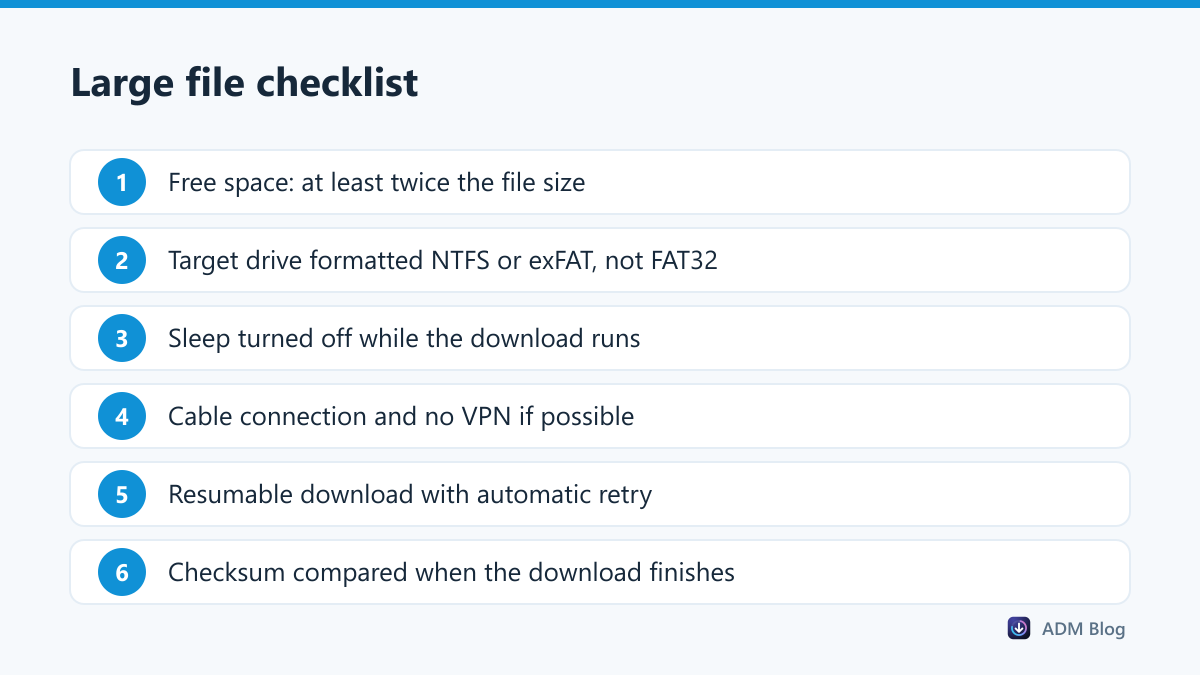
Keep at least twice the file size free on the target drive. Many downloads are unpacked or installed after they arrive, which needs extra room, and a drive that fills up in the middle of a transfer will stop it cold. If your system drive is small, change the download location to a larger drive first.
File system limits
USB sticks and older external drives are often formatted as FAT32, which cannot store any single file of 4 GB or more. The download may reach 99% and then fail with a vague error. Use a drive formatted as NTFS or exFAT for anything that large.
Keep the PC awake
If Windows goes to sleep, the network connection drops and the download stops. For a long download, open Settings > System > Power & battery, expand the screen and sleep timeouts, and set sleep to Never while it runs. On a laptop, plug in the charger so battery saver does not kick in. Remember to change the setting back afterwards.
Give the download a stable connection
- Use an Ethernet cable if you can. Wi-Fi drops are the most common cause of failed large downloads.
- Pause cloud sync, game launchers and streaming on other devices.
- Switch off your VPN for the download unless you need it.
- Start big downloads at night or at quiet times when the server and your provider are less busy.
If the speed itself is the issue, our guide to fixing slow download speed covers the network side in more detail.
Use a download method that can recover
Browsers can resume some downloads, but not reliably, and they rarely retry on their own. For multi-gigabyte files, a download manager is the safer choice. It keeps track of every part of the file, resumes after a dropped connection and retries failed parts automatically. We explain the details in our article on how to pause and resume downloads.
Parallel downloading also shortens the time the transfer is exposed to problems. A file that finishes in 20 minutes instead of an hour has three times fewer chances to be interrupted. See how a download accelerator works for the reasons.
| Problem | Typical symptom | Fix |
|---|---|---|
| Drive full | “Disk full” or a sudden stop near the end | Free space or pick another drive |
| FAT32 drive | Fails at about 4 GB | Save to an NTFS or exFAT drive |
| PC went to sleep | Download stopped overnight | Turn off sleep during the download |
| Wi-Fi drop | Network error, random progress | Use a cable and a resumable download |
| Expired link | Resume fails, “Forbidden” | Get a fresh link from the source page |
| Corrupted file | Archive or installer will not open | Compare the checksum and download again |
Verify the file when it’s done
Many projects publish a checksum (usually SHA-256) next to the download link. Comparing it proves the file is complete and unchanged. On Windows, open PowerShell in the download folder and run:
Get-FileHash .\filename.iso
The command uses SHA-256 by default, as described in Microsoft’s documentation. If the value matches the one on the website, the file is good. If not, download it again.
Large files from cloud storage
Services like Google Drive, OneDrive and Dropbox handle large files a little differently. Very large files may show a warning that they cannot be scanned for viruses, and folders are often packed into several zip files. Download each part fully before extracting, and keep all parts in the same folder. Signed-in sessions also expire, so if a cloud download stops after several hours, refresh the page, sign in again and start the missing parts rather than the whole set.
A tool built for big downloads
Advanced Download Manager is a free Windows app for exactly these jobs. It downloads each file in parallel parts, lets you pause, resume and retry from the download list, and runs up to 10 downloads at once with a limit you choose. Right-click a link in your browser, pick “Download with ADM” and it takes over from there.
Frequently asked questions
What is the best way to download a 50 GB file?
Use a wired connection, a drive with at least 100 GB free, sleep turned off and a download manager that can resume. Verify the checksum at the end.
Why does my large download fail at the same point every time?
Usually the drive is FAT32 and the file reached 4 GB, or the link expires after a fixed time. Check the drive format first.
Can I use my PC while a large file downloads?
Yes. Browsing and office work use little bandwidth. Avoid streaming or other big downloads until it finishes.
Is it better to download large files at night?
Often, yes. Servers and home networks are less busy, so speeds are higher and interruptions are rarer.
With enough space, a PC that stays awake, a stable connection and a resumable tool, you can download large files as calmly as small ones. Add a quick checksum at the end and every time you download large files you will know they arrived intact.