
A download accelerator promises to make files arrive faster, and many people assume that is just marketing. It isn’t, but the way it works is often misunderstood. A download accelerator cannot make your internet plan faster. What it can do is use the speed you already pay for more fully, by downloading one file over several connections at the same time. This article explains how that works, when it makes a big difference and when it does nothing at all.
Why a single download is often slower than your connection
A normal browser download uses one connection to the server. In theory that connection can reach your full plan speed. In practice several things hold it back:
- Per-connection limits. Many file servers cap each connection so that one visitor cannot take all their bandwidth.
- Distance. The further away the server, the longer each round trip takes, and a single connection spends more time waiting for acknowledgements.
- Packet loss. When a packet is lost, the connection slows down to recover. One connection feels that fully; several connections share the impact.
This is why a speed test can show 300 Mbps while a download crawls at 2 MB/s. We covered the other causes in our guide to fixing slow download speed.
How a download accelerator splits a file
Web servers can send part of a file instead of the whole thing. The client asks for a range of bytes, for example bytes 0 to 99,999,999, and the server answers with status 206 Partial Content. A download accelerator uses this to ask for several ranges at once, each over its own connection. When all parts have arrived, it joins them in the right order to rebuild the original file.
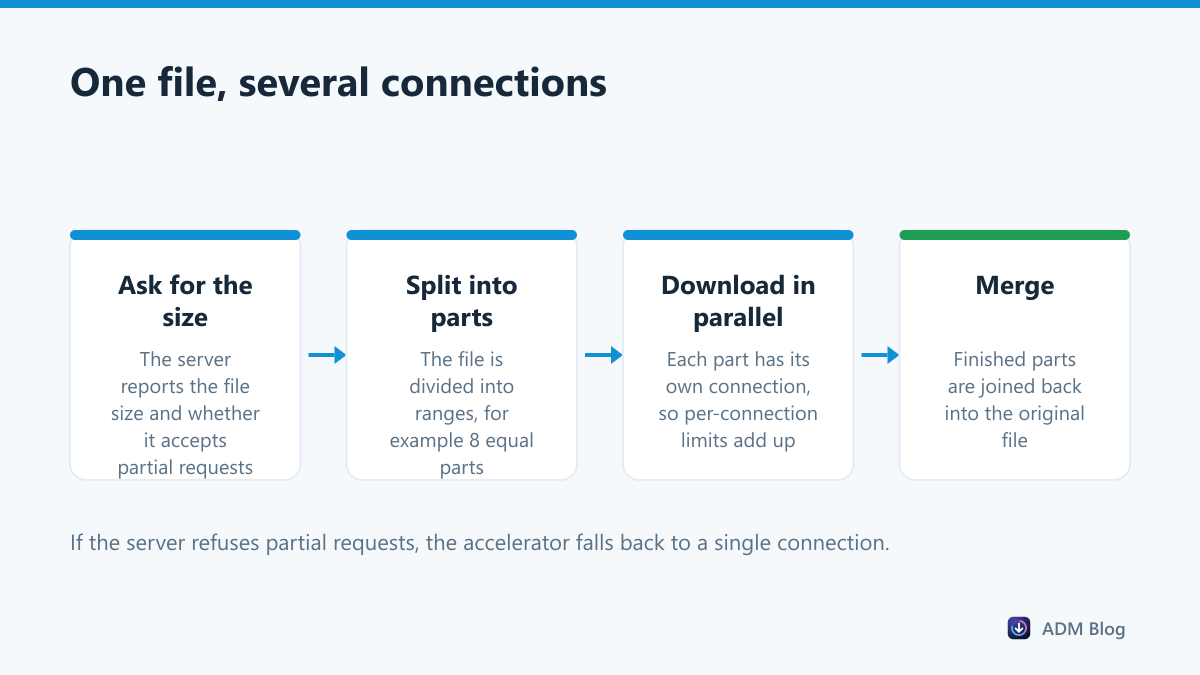
If a server allows 2 MB/s per connection, eight connections can bring the total close to 16 MB/s, as long as your plan can carry it. The same mechanism is what makes pausing and resuming downloads so reliable in a download manager: every part knows exactly how far it got.
When acceleration helps and when it doesn’t
| Situation | Will it be faster? | Why |
|---|---|---|
| Server limits speed per connection | Yes, often much faster | Each extra connection adds another share of speed |
| Server far away | Usually faster | Several connections hide the waiting time of each one |
| Download already at full plan speed | No | There is no spare bandwidth to use |
| Server refuses partial requests | No | The file can only be sent as one stream |
| Streaming video pages | Depends | Video is often split into small pieces already |
| Very small files | Barely | Setting up connections takes longer than the download |
How many connections should you use?
More is not always better. Each connection adds overhead, and some servers block or slow down visitors who open too many at once. For most home connections, 4 to 8 connections per file is the sweet spot. Go higher only for very distant servers or very fast plans, and go lower if a site starts returning errors.
It also helps to limit how many files download at the same time. Three files with eight connections each is already 24 connections competing for your bandwidth.
A simple way to find your own best setting is to test it. Pick a large file from a server you use often, download it with 1, 4 and 8 connections, and note the average speed each time. The point where the speed stops rising is the right number for that server. Different sites behave differently, so a setting that works well for one mirror may not suit another.
Is using a download accelerator fair to servers?
Parallel downloading is a standard use of the web. Browsers themselves open several connections to load a single page. Sensible defaults keep the load reasonable: a handful of connections per file, not hundreds. Respect a site’s rules if it asks you not to use download tools, and use official mirrors where they exist.
Trying it on Windows
Advanced Download Manager is a free download accelerator for Windows 10 and 11. It splits each file into 8 parts by default, and you can set anywhere from 1 to 32 connections per file and up to 10 simultaneous downloads. The browser add-on sends links from Chrome, Edge or Firefox with a right-click, so you do not have to copy and paste anything. If you are still choosing a tool, see what to look for in a download manager for Windows 11.
Frequently asked questions
Can a download accelerator increase my internet speed?
No. It can only fill the bandwidth you already have. It helps when a single connection leaves part of that bandwidth unused.
Does Chrome have a built-in accelerator?
Chrome has had an experimental parallel downloading flag, but it depends on your version and is not guaranteed to be available. A dedicated tool gives you control over the number of connections.
Why did my download get slower with more connections?
The server may be limiting visitors who open many connections, or your network is already full. Reduce the number of connections and test again.
Is a multi-part download safe for the file?
Yes. The parts are joined in order into an identical copy. If you want to be certain, compare the file’s checksum with the one published by the developer.
A download accelerator is not magic. It is a smarter way of asking servers for files. When a server limits each connection or sits far away, a download accelerator turns wasted bandwidth into real speed; when your connection is already full, it simply gets out of the way.