
Being able to pause and resume downloads is one of those features you only miss when you need it: the laptop battery is about to die, you are switching networks, or a 6 GB file is slowing down a video call. Every major browser can pause a download, but resuming is less reliable than most people think. This guide walks through the steps in Chrome, Edge and Firefox, explains why some files still restart from zero, and shows how to make large downloads survive interruptions.
How resuming a download actually works
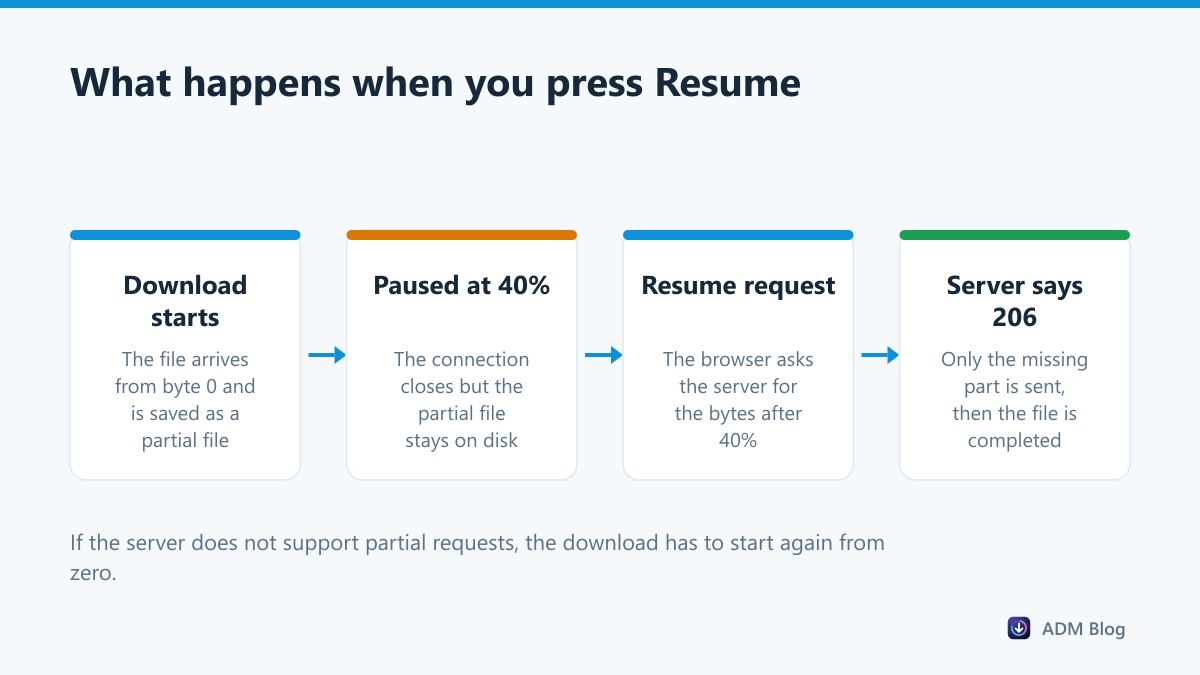
When you press Pause, the browser closes the connection but keeps the part of the file it already received. When you press Resume, it asks the server for the rest, starting at the exact byte where it stopped. This uses a standard web feature called HTTP range requests. If the server supports it, it answers with only the missing part and the download continues. If it does not, the browser has no choice but to start again.
Pause and resume downloads in Chrome
- Press Ctrl + J or open
chrome://downloads. - Find the file that is downloading and click Pause.
- When you are ready, click Resume on the same entry.
You can also point to the file in the download bubble at the top right of the window and use the Pause and Resume buttons there, as described in Google’s help page. If a download failed rather than paused, you will see Resume only when Chrome thinks the server can continue it; otherwise you get Retry.
Pausing and resuming in Microsoft Edge
- Press Ctrl + J to open the downloads panel, or go to
edge://downloads. - Hover over the active download and choose Pause.
- Choose Resume to continue.
Edge is built on the same engine as Chrome, so it behaves the same way when a server does not support resuming.
Pausing and resuming in Firefox
- Press Ctrl + Shift + Y to open the Library window with your downloads.
- Right-click the active download and choose Pause.
- Right-click it again and choose Resume.
| Browser | Open downloads | Where to pause | Survives a browser restart? |
|---|---|---|---|
| Chrome | Ctrl + J | Downloads page or download bubble | Often, if the server supports resuming |
| Edge | Ctrl + J | Downloads panel | Often, if the server supports resuming |
| Firefox | Ctrl + Shift + Y | Library window, right-click menu | Often, if the server supports resuming |
| Download manager | Its own window | Download list | Yes, progress is tracked per part |
Why some downloads restart from zero
If Resume is missing or the progress jumps back to zero, one of these is usually the reason:
- The server does not support partial downloads. Some sites generate files on the fly and cannot send “just the rest”.
- The link expired. Cloud storage and file hosts often use links that stop working after a short time.
- The file changed. If the file on the server was updated, the old part no longer matches and the browser starts fresh.
- The partial file was deleted. Cleaning tools sometimes remove temporary download files.
When a download fails with an error rather than a pause, see our guide to the Chrome download failed network error for the next steps.
Habits that make resuming work more often
You cannot change how a server behaves, but you can give every download the best chance of continuing after a break:
- Pause, don’t close. Pausing first lets the browser save its progress cleanly. Closing the window in the middle of a transfer is more likely to leave a broken partial file.
- Resume soon. Many download links are signed and expire after a few hours. The longer you wait, the more likely you are to see Retry instead of Resume.
- Stay on the same account. If the file needed a login, sign in again in the same browser before you resume, or the server may refuse the request.
- Leave temporary files alone. Disk cleaners and “junk file” tools often delete .crdownload and .part files, which throws away everything you already downloaded.
- Check free space before resuming. A drive that filled up during the pause will make the download fail again at once.
A more reliable way to pause big downloads
Browsers keep one partial file per download. A download manager splits the file into several parts and tracks each one, so pausing is safer and resuming is quicker. It can also retry a failed part on its own instead of failing the whole file. Advanced Download Manager lets you pause, resume and retry any item from its download list, and because it downloads parts in parallel it often finishes faster too. If speed is your main concern, our article on fixing slow download speed covers the other causes.
Frequently asked questions
Can I pause a download and shut down my PC?
Yes, in many cases. Pause the download, shut down, and resume after you restart. It works only if the server supports resuming and the link is still valid.
Why is the Resume button greyed out?
The browser has decided the download cannot continue, usually because the server does not accept partial requests. Your only option is Retry, which starts over.
Does pausing a download save bandwidth?
Yes. While paused, nothing is transferred, which is useful on metered or shared connections.
Where are partially downloaded files stored?
In your download folder with a temporary name, such as a .crdownload file in Chrome and Edge or a .part file in Firefox.
Every browser lets you pause and resume downloads, but only when the server cooperates. For everyday files the built-in buttons are enough; for large or important files, a download manager is the safest way to stop and restart a transfer without losing progress.