
Windows 11 ships with capable browsers, so why install anything else to handle files? Because a browser treats a download as a side job. A good download manager for Windows 11 treats it as the main job: it downloads faster, survives a dropped connection, keeps a queue in order and remembers where every file went. If you regularly grab installers, ISO images, videos or large archives, the difference shows up quickly.
This guide explains what a download manager actually does, which features are worth caring about, and how to set one up without inviting adware onto your PC.
What a download manager does that your browser doesn’t
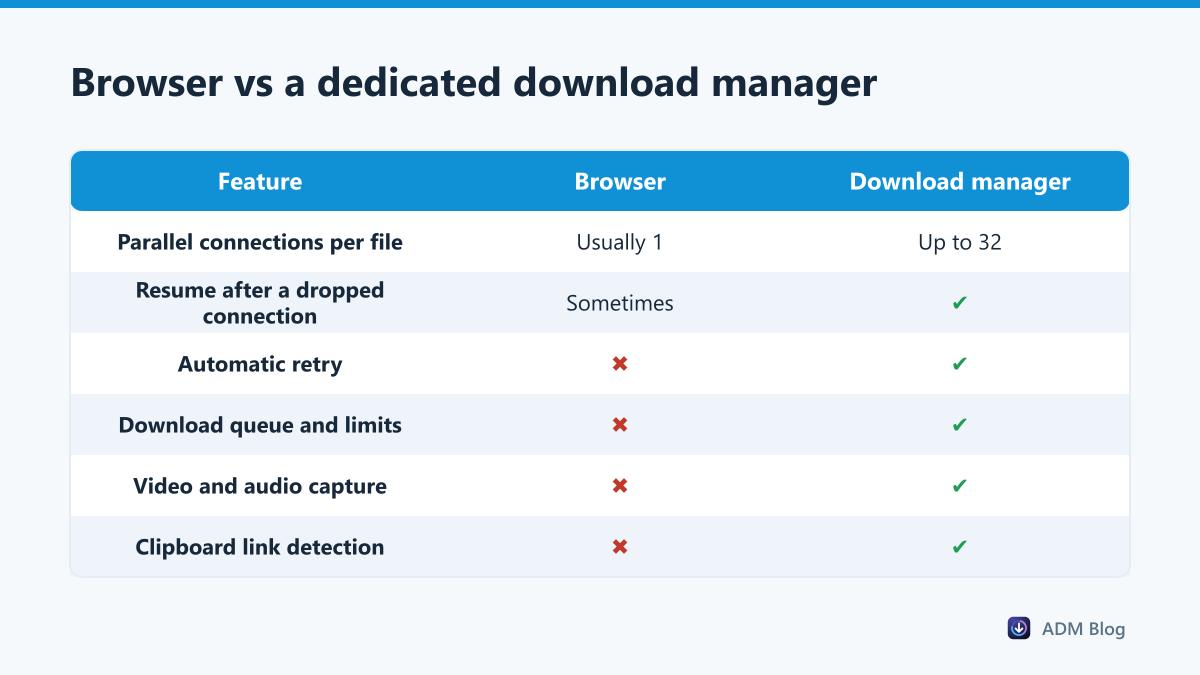
When Chrome, Edge or Firefox downloads a file, it normally opens one connection to the server and reads the file from start to finish. If that connection slows down, the whole download slows down. If it drops, you may be able to resume, or you may have to start again. We covered the most common result of that in our guide to the Chrome download failed network error.
A download manager works differently. It asks the server for the file in several pieces at once, stitches them together at the end, and records how much of each piece has arrived. That single design choice gives you three benefits: higher speed on most servers, reliable resuming, and automatic retries.
Features that matter in a download manager for Windows 11
Most tools list dozens of features. These are the ones that make a real difference day to day.
| Feature | Why it matters | What good looks like |
|---|---|---|
| Multi-part downloading | Uses more of your bandwidth on servers that limit each connection | Adjustable number of connections per file |
| Pause and resume | Lets you stop a download and continue later without losing progress | Resume works after closing the app or restarting the PC |
| Retry on failure | Recovers from short network drops on its own | A retry button and clear error messages |
| Browser integration | Sends links from the browser straight to the manager | A right-click menu item in Chrome, Edge and Firefox |
| Queue and concurrency | Stops ten big files from fighting for bandwidth | A limit on how many downloads run at once |
| Privacy | Download links can reveal a lot about you | No account, no link history sent to a server |
Features you can safely ignore
Built-in “speed boosters” that promise to double your internet connection are marketing. A download manager can only use the bandwidth you already pay for; it makes downloads faster by using that bandwidth more fully, not by creating more of it. Likewise, bundled toolbars, “PC optimizers” and browser homepage changes add nothing and often make your system worse.
How to choose one safely
Download managers are a popular hiding place for adware because people install them quickly and click through setup screens. Protect yourself with a few simple rules:
- Download only from the developer’s official website or a browser’s official add-on store.
- Read each installer screen and untick any extra software you did not ask for.
- Prefer tools that work without an account or sign-up.
- Check that the browser add-on explains what it does with your links.
If Windows SmartScreen or your antivirus warns about an installer, stop and check the source before you continue. Google’s help page on downloading files is also useful for understanding where the browser puts each file and how to manage it.
Setting up a download manager on Windows 11
Here is how the setup looks with Advanced Download Manager, a free download manager for Windows 10 and 11 that needs no account:
- Download the installer from the official site and run it.
- Install the companion add-on for Chrome, Edge or Firefox so links can be sent from the browser.
- Right-click any link, image or video and choose “Download with ADM”.
- Open the settings to choose your download folder, the number of connections per file (8 by default, up to 32) and how many downloads run at the same time (3 by default).
The add-on only passes the link to the desktop app on your own PC through the browser’s native messaging system. Nothing about your downloads is sent to an external server.
Recommended settings for most people
Default settings work well, but a few tweaks help on slower or shared connections. Keep connections per file at 8; going higher rarely helps and some servers reject too many connections from one visitor. Limit simultaneous downloads to 2 or 3 so each one finishes quickly instead of all of them crawling. Save to a drive with plenty of free space, not a nearly full system drive.
Frequently asked questions
Does Windows 11 have a built-in download manager?
No. Windows 11 relies on the download features inside each browser. They handle everyday files well but do not split files into parts or retry automatically.
Will a download manager make every download faster?
Not every one. The gain depends on the server. Servers that limit the speed of each connection benefit the most; a server that already fills your connection will not get faster.
Is a free download manager safe to use?
It can be, as long as you get it from the official source and it installs no extra software. Avoid versions from download portals that wrap installers in their own setup program.
Do I still need my browser’s downloads page?
Yes, for small everyday files. A manager earns its place with large files, batches of links and videos.
A browser can download files, but a download manager for Windows 11 makes large downloads faster, recoverable and organized. Pick one that is free of bundled extras, keep the defaults sensible, and let it handle the heavy lifting while you get on with your work. That is the real value of a good download manager for Windows 11.