
You go looking for a file you downloaded in Firefox and find something ending in .part instead. A Firefox part file is the browser’s work-in-progress copy: the bytes that have arrived so far, waiting for the rest. It is not damaged, not infected and not a strange format. It is just an unfinished download, and there are only a few useful things to do with it.
What is inside a part file
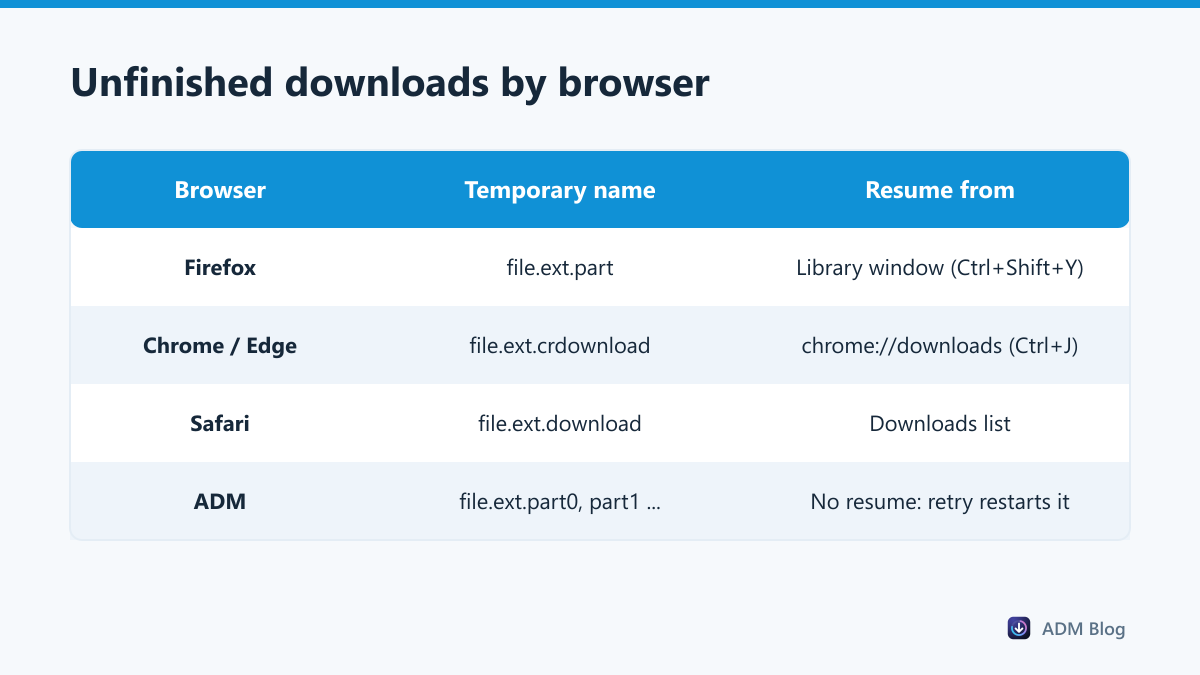
When a download starts, Firefox creates yourfile.zip.part in your download folder and writes everything it receives into it. When the last byte arrives, it renames the file to yourfile.zip. If the transfer stops early, the partial copy stays behind with its .part name so the download can be continued later.
Other browsers do exactly the same thing with a different extension, which is why a Chrome download leaves a crdownload file instead.
Why a Firefox part file is left behind
- The connection dropped or the Wi-Fi switched networks.
- Firefox was closed while the transfer was running.
- The PC went to sleep. Long downloads need the sleep timer turned off.
- The disk filled up before the file was complete.
- The server cut the connection, often because a signed link expired.
Mozilla’s page on what to do if you cannot download or save files covers the Firefox-specific settings worth checking, such as the download folder and profile permissions.
How to resume it
- Press Ctrl + Shift + Y to open the Library window with your downloads.
- Find the interrupted item. A paused or failed download shows a Resume or Retry arrow.
- Click Resume. Firefox continues writing into the same part file.
If only Retry is available, the server will not send the rest of the file on its own and the download starts from zero. We explain when that happens in our guide to pausing and resuming downloads.
Can you open or rename it?
Renaming the file by cutting off .part is the obvious idea, and it rarely works. The content is incomplete, so:
| File type | After renaming | Worth trying? |
|---|---|---|
| Installer or program | Will not run | No |
| Zip or 7z archive | Cannot be opened, index missing | No |
| MP4 or MKV video | Often plays up to the cut-off in VLC | Sometimes |
| JPG or PNG image | Top part visible, rest grey | Sometimes |
| Plain text or CSV | Readable up to the cut-off | Yes |
Renaming also costs you the chance to resume, because Firefox no longer recognises the file. Resume first; rename only when you have given up on the real download.
Where Firefox keeps the file while it downloads
By default the part file sits in your normal download folder, right next to where the finished file will appear. Some builds and some settings put it in a temporary folder instead and move it at the end, which is why a download can briefly seem to be missing before it shows up complete.
Two settings decide what you see:
- Settings > General > Files and Applications sets the download folder, or makes Firefox ask every time.
- Always ask you where to save files is worth turning on if you often download large files to different drives; it stops everything piling into one folder.
If the folder is on a drive that disconnects, such as a USB stick or a network share, the part file is orphaned the moment the drive goes away. Keeping downloads on a local drive and moving them afterwards avoids that whole class of failure, as we suggest in our guide to choosing a download location.
When to delete it
A part file whose download you have abandoned is safe to delete, and so is one left over from a download that later succeeded. Nothing else on your system uses it. Interrupted downloads of large files can take up real space, so it is worth sorting your folder by size now and then, as described in our downloads folder guide.
Stopping them from piling up
Part files appear whenever one long connection is interrupted, so the lasting fix is fewer interruptions rather than better clean-up. Shorter transfers help most: Advanced Download Manager splits a file across several connections on servers that allow it, which can cut a long download down considerably on servers that throttle each connection, as explained in how a download accelerator works. It does not resume a failed transfer part-way — a retry starts the file again — so for multi-gigabyte files our large file checklist, which covers the disk and power settings that prevent most interruptions, matters either way.
Frequently asked questions
Where does Firefox store part files?
In the folder you download to, next to where the finished file will appear. If you cannot find it, open the Library window and use “Open Containing Folder”.
Can I move a part file to another PC and finish it there?
No. The download state lives in the Firefox profile, not in the file, so the other PC starts a new download.
Why does a part file stay after the download finished?
Usually the rename failed because the final name was in use or the folder was not writable. Close anything using that file name and download again.
Is a part file dangerous?
No more than the download itself. Judge the source, not the extension; our checklist on whether a file is safe to download covers the checks.
Treat a Firefox part file as a download waiting to be finished rather than a mystery file. Resume it from the Library window, delete it when you no longer need it, and use a resumable tool for the big files that keep leaving one behind.