
You click a download link and nothing happens, or the file appears in the list with a red warning and a note that it was blocked. Chrome blocking downloads is a safety feature, and most of the time it is right. But it also stops legitimate installers, older utilities and files from small developers. This guide explains why Chrome blocks a download, how to tell a real threat from a false alarm, and how to get a file you trust without switching off the protection that keeps you safe.
Why is Chrome blocking downloads?
Chrome checks every download against Google Safe Browsing and against a few rules of its own. A file can be blocked for several different reasons, and each one needs a different response.
- Known dangerous file. Safe Browsing has seen the file or the site spreading malware.
- Uncommon file. The file is new or rarely downloaded, so Chrome cannot vouch for it. This is common with new versions of small programs.
- Insecure download. The file comes over plain HTTP instead of HTTPS, which means it could be swapped in transit. Chrome has been warning about and blocking these since the Chromium team announced the change.
- Blocked by Windows or your antivirus. Chrome hands the file to Windows security checks. If those fail, you see “Virus scan failed” or “Download blocked”.
- Too many automatic downloads. If a site tries to download several files at once, Chrome asks for permission first.
| What you see | What it means | Safe way forward |
|---|---|---|
| Dangerous file blocked | Safe Browsing links it to malware | Delete it and find another source |
| File isn’t commonly downloaded | Chrome has little data on it | Verify the source, then keep it if you trust it |
| Insecure download blocked | The file came over HTTP | Look for an HTTPS link on the official site |
| Virus scan failed / Virus detected | Windows or your antivirus stopped it | Check the antivirus history and quarantine |
| Download blocked | Windows security settings refused it | Check Attachment Manager or company policy |
How to keep a file you trust
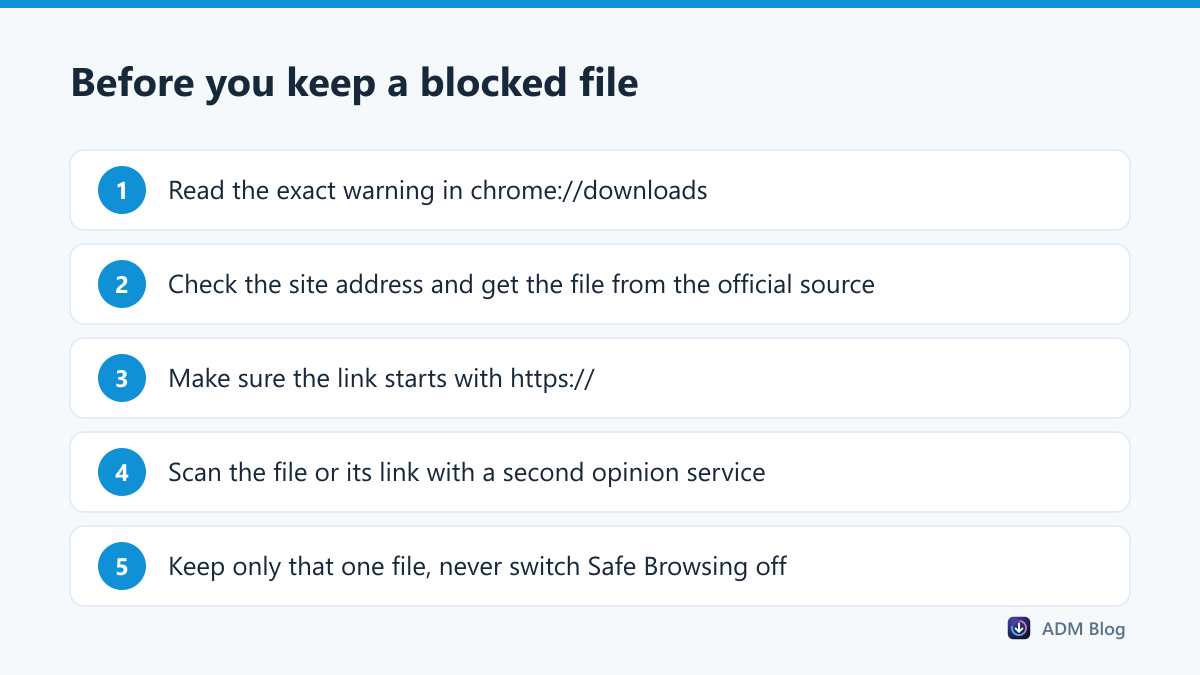
If you are confident the file is safe, for example an installer from the developer’s own website, you can keep that single file:
- Press Ctrl + J to open
chrome://downloads. - Find the blocked file and read the warning under it.
- Use the option on that entry to keep or download the file anyway. The wording changes between Chrome versions, but it is always on the file’s own entry.
- Confirm the extra prompt. Chrome saves the file only after you agree.
This keeps Safe Browsing active for everything else, which is far better than switching it off.
Check the file before you open it
A second opinion takes one minute. Upload the file or paste its link into VirusTotal, which checks it with dozens of antivirus engines. One or two detections on a small utility are often false alarms; many detections mean you should delete it. Also compare the file name and size with what the official site lists.
Fixing “Virus scan failed”
This message usually comes from Windows rather than Chrome. According to Google’s download error guide, you should check your antivirus software for details and, on Windows, the Attachment Manager and internet security settings. In practice:
- Open your antivirus history and see whether the file was quarantined.
- Make sure only one antivirus program is running real-time scans.
- On a work computer, ask IT. Company policies often block executable downloads on purpose.
Allow sites to download multiple files
If a site needs to send several files at once, Chrome shows a prompt in the address bar. Click it and allow the downloads for that site. You can manage this later in Settings > Privacy and security > Site settings under the automatic downloads permission.
Should you turn off Safe Browsing?
No. Chrome offers three levels in Settings > Privacy and security > Security: Enhanced protection, Standard protection and No protection. Google explains the differences on its Safe Browsing help page. Choosing No protection to get one file through leaves you exposed on every site you visit afterwards. Keep the single file instead.
Downloading large files outside the browser
A download manager does not bypass your security. Windows and your antivirus still check every file it saves. What it adds is reliability for big, trusted downloads: Advanced Download Manager resumes interrupted transfers and downloads in parallel parts, so an installer or disk image arrives faster and in one piece. If a download fails for a network reason rather than a block, our guide to the Chrome download failed network error covers that case, and you can change the download location if the target folder is the problem.
Frequently asked questions
Why does Chrome block a file from a site I trust?
Often because the file is new or rarely downloaded. Chrome has no reputation data for it yet, so it warns you even though the site is legitimate.
Is it safe to keep a blocked download?
Only if you are sure of the source and a second scan looks clean. If Chrome says the file is dangerous, delete it.
Why are HTTP downloads blocked?
Files sent over plain HTTP can be replaced by someone on the same network. Look for an HTTPS link, which the official download page usually provides.
Can my employer block downloads in Chrome?
Yes. Managed computers can use policies that block certain file types. Only your IT team can change that.
Chrome blocking downloads is annoying when you trust the file, but the fix is to verify the source and keep just that one download, not to switch protection off. With that habit, Chrome blocking downloads becomes a quick check rather than a dead end.