
You pay for a fast internet plan, yet a 3 GB file still takes half an hour. Slow download speed is one of the most common complaints on Windows, and the cause is often not your internet connection at all. It can be the server, your Wi-Fi, a program eating bandwidth in the background, or simply the way your browser downloads files. Before you call your provider, it pays to measure properly and find the real bottleneck.
First, measure your speed the right way
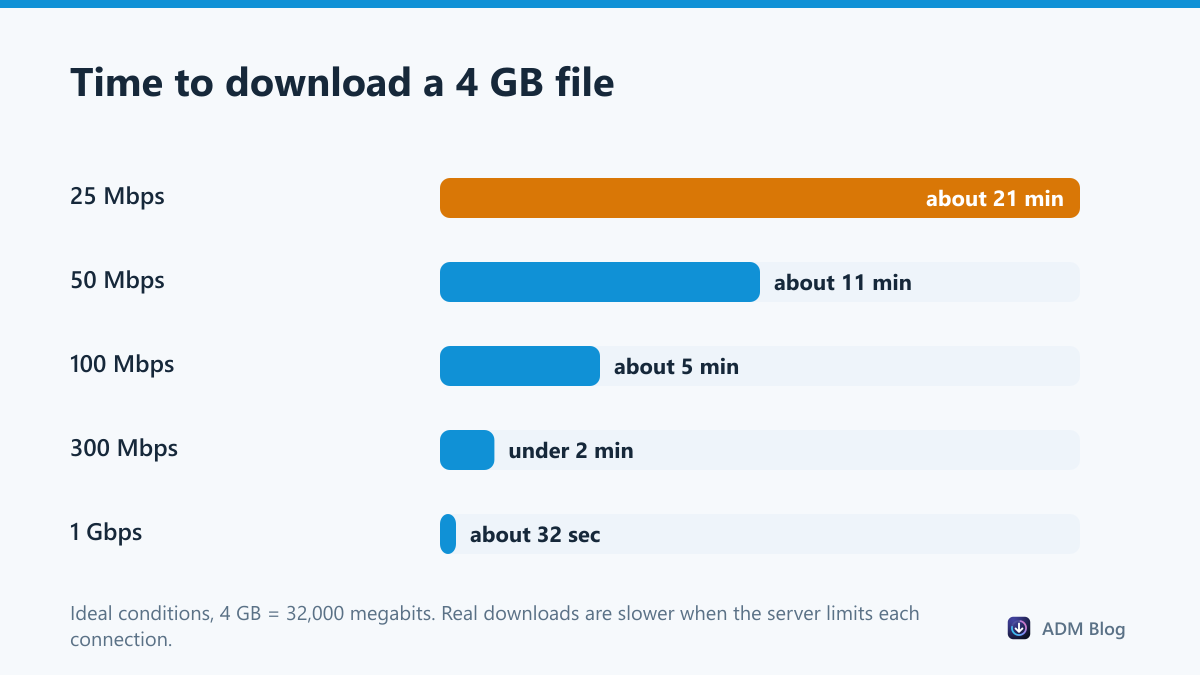
Internet plans are sold in megabits per second (Mbps), while browsers and download tools show megabytes per second (MB/s). One byte is eight bits, so divide your plan speed by eight to get the best download rate you can expect. A 100 Mbps plan tops out around 12.5 MB/s. Many people think their downloads are slow when they are actually running at full speed.
| Plan speed | Maximum download rate | A 1 GB file takes about |
|---|---|---|
| 10 Mbps | 1.25 MB/s | 13 minutes |
| 50 Mbps | 6.25 MB/s | 2 minutes 40 seconds |
| 100 Mbps | 12.5 MB/s | 1 minute 20 seconds |
| 300 Mbps | 37.5 MB/s | 27 seconds |
| 1 Gbps | 125 MB/s | 8 seconds |
Next, run a test on Speedtest and compare it with the speed of your download. If the test is fast but the download is slow, the problem is the server or the way the file is downloaded. If the test is slow too, the problem is your connection or your PC.
10 ways to fix slow download speed
1. Plug in a cable
Wi-Fi speed falls sharply with distance, walls and interference from neighbours. An Ethernet cable removes all of that and is the single biggest fix for large downloads.
2. Restart your router
Routers that have been running for weeks can slow down. Unplug it for thirty seconds, plug it back in and test again.
3. Stop background downloads on your PC
Windows updates, OneDrive, game launchers and cloud backups all download in the background. Open Task Manager, go to the Performance tab and check the network graph while nothing is supposed to be downloading.
4. Limit Windows Update bandwidth
In Settings > Windows Update > Advanced options > Delivery Optimization you can cap how much bandwidth updates use, so they no longer take over your connection.
5. Check other devices on the network
A 4K stream on the TV or a console downloading a game can use most of a home connection. Pause them while your important download runs.
6. Turn off your VPN
A VPN routes traffic through another server, which often reduces speed. Pause it for large downloads, or choose a server closer to you.
7. Try a different mirror or time
Many projects offer several download mirrors. A server on your continent is usually faster, and busy servers are quicker late at night. If a popular release has just come out, waiting a few hours for the rush to pass can make the same download several times faster.
8. Let the antivirus finish, not fight
Real-time scanning can slow a download that is arriving in many small pieces. Keep protection on, but make sure only one security tool is scanning downloads.
9. Download in parallel
Many servers limit the speed of each connection. A download manager opens several connections to the same file and fills your bandwidth. This is often the biggest win when the speed test is fast but the download is not. We explain how to pick one in our guide to choosing a download manager for Windows 11.
10. Resume instead of restarting
If a slow download finally fails, starting again from zero wastes all the time you already spent. Tools that resume from the last byte turn a failure into a short pause. See our fixes for the Chrome network error if that is what you keep running into.
When the problem is the server
If every file from one site is slow but other sites are fast, the server is limiting you. You cannot change that limit, but you can work around it with multiple connections. Advanced Download Manager splits each file into several parts (8 by default) and downloads them at the same time, so a server that allows 2 MB/s per connection can deliver much more in total.
- Fast speed test, slow download: server limit or single-connection download.
- Slow speed test: Wi-Fi, router, provider or background traffic.
- Fast at night, slow in the evening: network congestion.
Frequently asked questions
Why is my download slower than my internet speed?
Usually because the plan is in megabits and the download is shown in megabytes. Divide the plan speed by eight. If there is still a big gap, the server is probably limiting each connection.
Does clearing the browser cache speed up downloads?
No. The cache affects how quickly web pages load, not how fast a file downloads.
Can a download manager exceed my plan speed?
No. It can only use the bandwidth you already have. It helps by using that bandwidth more fully when a server holds each connection back.
Is 5G or Wi-Fi 6 enough for large downloads?
Both can be very fast, but signal strength matters more than the label. A cable is still the most reliable choice for multi-gigabyte files.
Most cases of slow download speed come down to three things: units, Wi-Fi and servers that cap each connection. Measure first, fix your local network second, and use parallel downloads for the rest. With those steps, slow download speed stops being a daily annoyance.