
The downloads folder is where almost everything you get from the internet lands first: installers, PDFs, photos, zip files and the occasional file you downloaded twice by mistake. Over time it becomes the messiest place on most PCs. This guide shows where the downloads folder lives on Windows, how to find a file you just downloaded, how to fix a folder that takes forever to open, and how to move it and keep it clean without effort.
Where is the downloads folder?
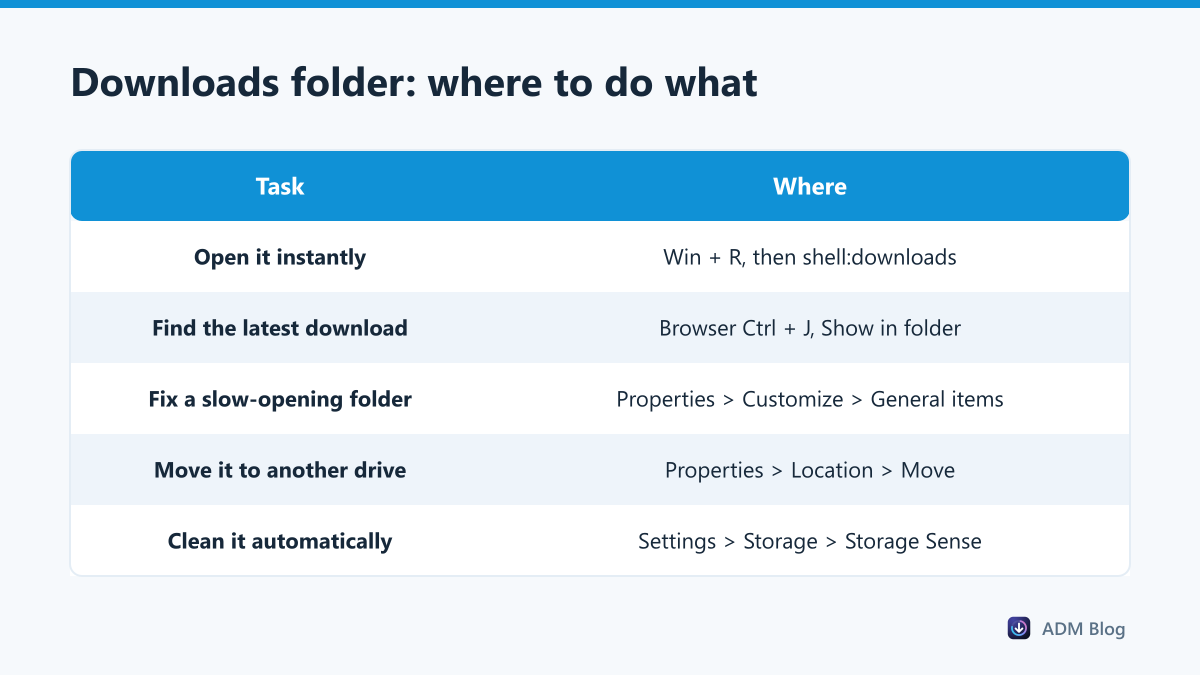
On Windows 10 and 11, each user has their own folder at C:\Users\YourName\Downloads. The quickest ways to open it:
- Open File Explorer and click Downloads in the left pane.
- Press Win + R, type
shell:downloadsand press Enter. This works even if the folder has been moved. - In your browser, press Ctrl + J and use Show in folder on any download.
How to find a file you just downloaded
If a file seems to have vanished, it is usually in a different folder than you expect. Start with the browser’s download list, which shows the exact location. In the folder itself, switch to Details view and sort by Date modified so the newest files are at the top. If you changed where your browser saves files, the file will be in that folder instead; our guide to changing the download location shows where each browser keeps that setting.
Fix a downloads folder that is slow to open
A common complaint is a folder that shows “Working on it…” for a long time. Windows tries to treat the folder as a picture or video library and reads information from every file. With thousands of downloads, that takes a while. To fix it:
- Right-click the Downloads folder and choose Properties.
- Open the Customize tab.
- Set Optimize this folder for to General items and tick Also apply this template to all subfolders.
- Click OK and reopen the folder.
Grouping by date can also slow down very large folders. In the View menu, turn grouping off if you do not need it.
If it is still slow after that, the cause is usually sheer volume. Tens of thousands of files, or a few huge video files that Windows tries to preview, will slow any folder down. Moving older files into an archive subfolder once a year keeps the main view quick.
Move the downloads folder to another drive
If your system drive is small, move the whole folder to a bigger one. Right-click Downloads, choose Properties, open the Location tab, click Move and pick an empty folder on the other drive. Windows moves your existing files and updates every program that uses the standard location. Use Restore Default on the same tab to undo it.
Clean it up automatically with Storage Sense
Windows can delete old downloads for you. Open Settings > System > Storage, turn on Storage Sense and open its settings. There you can choose to delete files in Downloads that have not been opened for a set number of days. The option is off (set to Never) by default. Microsoft explains the settings in its Storage Sense guide.
Be careful: once this is on, anything you keep in Downloads long-term will eventually be deleted. Move files you want to keep before you enable it.
| Approach | Effort | Risk |
|---|---|---|
| Manual clean-up once a month | Medium | Low, you decide every file |
| Storage Sense after 30 or 60 days | None | Forgotten files are deleted |
| Subfolders by type or project | Low | Low |
| Download straight to project folders | Low after setup | Downloads end up spread out |
Habits that keep it tidy
- Treat Downloads as an inbox. Move files to Documents, Pictures or a project folder once you have used them.
- Delete installers after use. You can always download the latest version again from the official site.
- Watch for duplicates. Files ending in (1) or (2) are copies of something you already have.
- Scan before you open. Our checklist on whether a file is safe to download takes only a minute.
Where a download manager fits in
Advanced Download Manager keeps its own list of everything you downloaded, with the file name, size and status, so you can find a file without digging through the folder. You can point it at a separate folder for large downloads, which keeps big videos and disk images out of your everyday Downloads. It is also handy when you need to download multiple files at once into one place.
Frequently asked questions
Why did Downloads disappear from File Explorer?
It is usually just unpinned. Press Win + R, type shell:downloads to open it, then right-click and choose Pin to Quick access.
Is it safe to delete everything in Downloads?
Only if you have moved what you need. Windows does not rely on the folder, but your own files might be there.
Can two Windows users share one folder for downloads?
Each Windows account has its own. You can point both at the same folder with the Location tab, but it is simpler to use a shared folder for files you both need.
Why are files in Downloads marked as blocked?
Windows marks files from the internet. Open Properties and tick Unblock only if you trust the file.
A few minutes of setup turns the downloads folder from a junk drawer into a simple inbox: open it quickly, fix slow loading, move it if space is tight, and let Storage Sense clear out what you no longer need from your downloads folder.