
Clicking twenty download links one by one is slow, easy to get wrong, and your browser may block half of them anyway. Whether you are grabbing a set of course materials, a folder of photos or a list of installers, there are better ways to download multiple files at once. This guide covers five methods, from a simple browser permission to a full download queue, and explains which one suits which job.
Method 1: Let the browser download several files from one site
When a website tries to start several downloads at the same time, Chrome and Edge stop it and show a small prompt in the address bar asking whether to allow multiple downloads. Click it and choose Allow for that site. You can review the permission later in Settings > Privacy and security > Site settings under automatic downloads.
This is fine for a handful of files. It does not help when you have to click each link yourself, and a blocked file will still need attention. Our guide to Chrome blocking downloads explains the warnings you may see.
Method 2: Download a whole folder from cloud storage
Google Drive, OneDrive and Dropbox let you select several files or an entire folder and download them together. The service packs everything into one or more zip files. Google describes the steps in its Drive download help.
- Hold Ctrl and click each file, or select the folder.
- Choose Download and wait while the zip is prepared.
- For very large folders, expect several zip parts. Download them all before extracting.
Method 3: Use a download manager queue
For many files, or for large ones, a download manager is the most reliable option. You add links to a queue, set how many should run at the same time, and let it work through the list. Each file can be paused, resumed or retried on its own, so one broken link does not ruin the batch.
With Advanced Download Manager, you can right-click each link in the browser and send it to ADM, or simply copy links: the clipboard monitor notices copied download links and offers to grab them. You choose how many downloads run at once, from 1 to 10 (3 by default), so the batch does not choke your connection.
Method 4: Use curl in PowerShell
Windows 10 and 11 include curl.exe. If you have a text file with one link per line, this command downloads each file into the current folder with its original name:
Get-Content .\links.txt | ForEach-Object { curl.exe -L -O $_ }
The -L option follows redirects and -O keeps the remote file name. The full list of options is in the curl manual. This works well for plain direct links, but it downloads one file at a time and needs extra options to resume or retry.
Method 5: Ask for a single archive
If you control the files, or you can ask the person sharing them, the simplest solution is often one zip or 7z archive. One download is easier to verify and resume than fifty small ones.
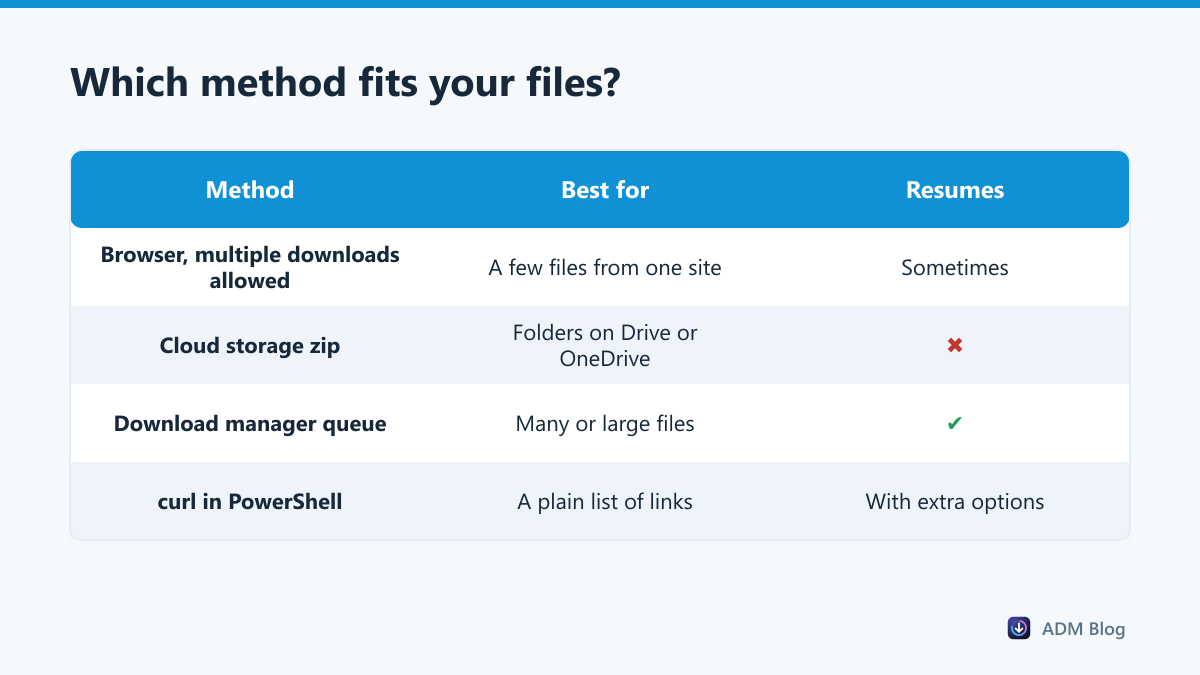
Which way to download multiple files at once should you use?
The right choice depends on where the files are, how many there are and how large they get. A shared folder is a different job from a page full of separate links, and a few documents need less care than a batch of disk images.
| Your situation | Best method |
|---|---|
| 3 to 5 files on one web page | Allow multiple downloads in the browser |
| A shared folder on Drive or OneDrive | Select the folder and download it as a zip |
| Dozens of links, or files over 1 GB | A download manager queue |
| A text file full of direct links | curl in PowerShell, or paste them into a manager |
| Files you are sharing yourself | Pack them into one archive |
Tips for big batches
- Do not run everything at once. Three or four simultaneous downloads usually finish sooner than twenty, because each one gets a useful share of bandwidth.
- Use a dedicated folder. Create a folder for the batch so files do not mix with the rest of your downloads.
- Check the count at the end. Compare the number of files with the number of links before you delete the list.
- Watch free space. Add up the file sizes first. Our large file checklist covers drive formats and power settings too.
Frequently asked questions
Why does Chrome only download the first file?
Chrome blocks automatic downloads after the first one until you allow them. Look for the prompt in the address bar and allow downloads for that site.
Can I download all links on a web page?
Browsers cannot do this on their own. You can copy the links you need and add them to a download manager, which then handles them as a queue.
Is it faster to download files one at a time?
Not usually. A small number of parallel downloads makes better use of your connection, especially when servers limit the speed of each one.
How do I avoid duplicate files in a batch?
Use an empty folder for each batch, and check for files with “(1)” in their names, which show that the same file was saved twice.
There is no need to click links one by one. Pick the method that matches your files, keep the number of simultaneous downloads sensible, and you can download multiple files at once without errors or duplicates.