
An insufficient permissions download error is Windows refusing a write, not the server refusing a request. The browser found the file and may have downloaded all of it, then failed at the last step: putting it on your disk. That distinction matters, because every fix below is on your own machine, and none of them involve the website you were downloading from.
What the error actually means
Chrome shows Failed – Insufficient permissions in the downloads list. Google’s file download errors guide describes it simply as the browser not being able to save the file, and suggests saving somewhere you can access, such as Desktop or Documents. That is good advice, and the reason it works so often is that the default download folder has usually become unwritable without the person noticing.
Edge and Brave are built on the same engine and show the same wording. Firefox phrases it differently but hits the same wall.
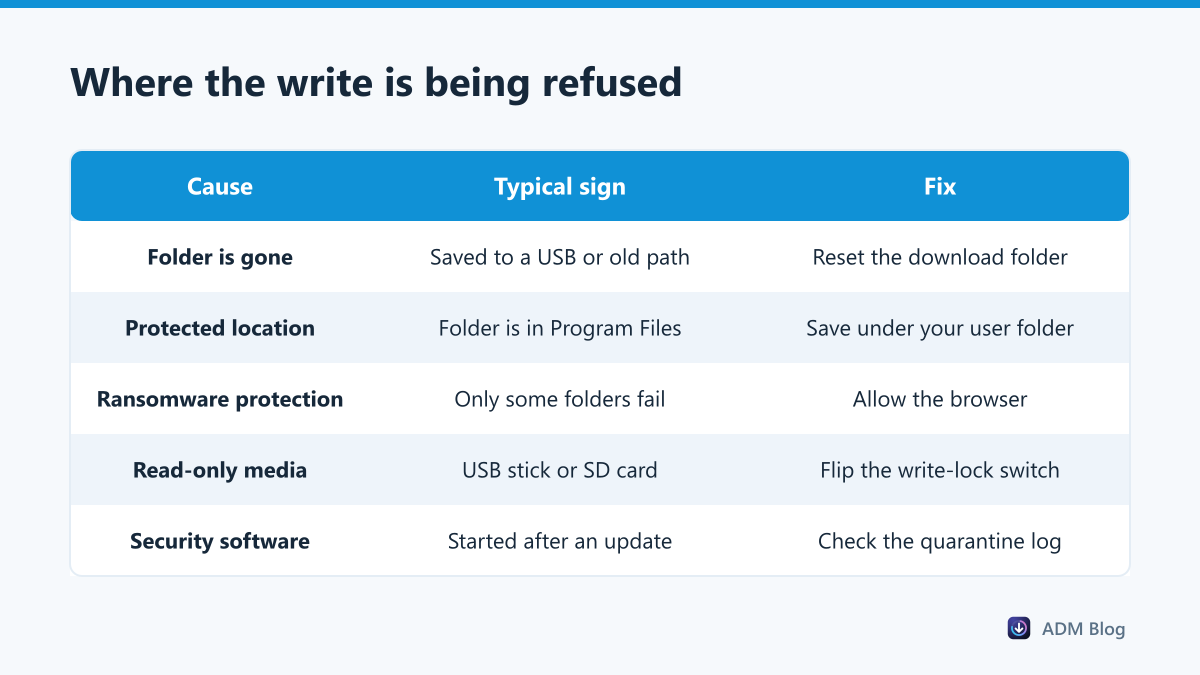
Eight causes of an insufficient permissions error
1. The download folder no longer exists
This is the most common cause by a distance. The browser remembers the last folder you chose. If that was a USB stick, an external drive, a network share or a folder you later deleted or renamed, the path is still set and the write fails every time. Point the browser back at a folder that exists; our guide to changing the download location walks through it in each browser.
2. You are saving into a protected system location
Windows refuses ordinary writes to C:\, C:\Windows and C:\Program Files unless the program is elevated. A browser is not, by design. If the download path drifted into one of those, every file fails. Keep downloads under your own user folder.
3. Ransomware protection is blocking the browser
Windows Security has a feature called Controlled folder access that stops unrecognised programs writing to Documents, Pictures, Desktop and similar folders. When it is on, a browser update can be enough to make Windows treat the browser as a new program. Microsoft’s documentation on controlled folder access explains the behaviour, and the setting lives in Windows Security under Virus & threat protection, then Ransomware protection. You can allow the browser there rather than turning the whole feature off.
The tell-tale sign is that downloads fail into Documents or Desktop but succeed into a folder you created yourself.
4. The folder is read-only for your account
Right-click the folder, open Properties, then the Security tab, and look at your own user name. You need Write listed under Allow. Folders inherited from an old Windows installation, copied from another PC or restored from a backup often carry permissions belonging to an account that no longer exists.
5. The drive or card is write-protected
Some SD cards and a few USB enclosures have a physical lock switch. A write-protected volume produces an insufficient permissions error rather than a disk error, which sends people hunting in the wrong place. Copy any file to the drive in File Explorer: if that also fails, the problem is the media, not the browser.
6. The disk is full, or the quota is
A full disk usually produces its own message, but on a drive with a user quota, or a OneDrive folder that has stopped syncing, the write can be refused rather than reported as a space problem. Check free space before assuming permissions.
7. Security software is intercepting the write
Antivirus products scan a file as it lands. If one decides it dislikes the file, the download can end with a permissions error instead of a clear warning. Open the product’s quarantine or protection log and look for an entry at the same timestamp. That is also what separates this case from a virus scan failed error, where the browser says so plainly.
8. The browser profile is damaged
Rare, but real: a corrupted preferences file can leave an unusable path that the settings screen cannot repair. Test it quickly by downloading in a new browser profile or a private window with extensions off. If that works, the profile is the problem, not the folder.
Telling this error apart from its neighbours
| Message | What failed | Where to look |
|---|---|---|
| Failed – Insufficient permissions | Writing the file to disk | Download folder, Windows Security |
| Failed – Forbidden | The server refused the request | Forbidden guide |
| Failed – Network error | The connection dropped | Network error guide |
| Failed – Virus scan failed | A security check refused it | Virus scan guide |
| Download blocked | Browser or Windows policy | Blocked downloads guide |
The pattern is worth remembering: Forbidden and Network error happen before the file reaches you, while insufficient permissions happens after.
A two-minute test that isolates it
Before changing any settings, find out whether the problem is the folder or everything:
- Save somewhere else once. Right-click the link, choose Save link as, and pick Desktop. If it works, the old folder is the culprit and nothing else needs touching.
- Create a new folder and try that. A folder you just made carries clean permissions. Success here points at the old folder’s security settings or at ransomware protection.
- Copy any file into the target folder manually. If File Explorer cannot write there either, the browser was never the issue.
Those three steps separate a folder problem from a machine-wide one, and they take less time than reading a forum thread about registry edits.
What a download manager changes
A download manager writes with the same Windows account as your browser, so it is refused in the same places — a protected folder stays protected. What it changes is where it writes and how easy the failure is to find again. Advanced Download Manager keeps its own download folder setting, independent of the browser’s, so a broken browser path does not stop your transfers, and a failed item stays in its list, so once the folder is fixed you can retry it with one click instead of hunting for the link again.
If you are moving large files, check the folder before you start rather than after: a retry downloads the file again from the beginning, so the cheapest failure is the one that never happens. Our guide to downloading large files covers the rest of that checklist.
Frequently asked questions
Why does only one website trigger it?
It usually is not the website. Check whether those downloads share a file type that your antivirus treats differently, such as .exe or .zip, because the extension can decide which scanner handles the write.
Should I run the browser as administrator?
No. It hides the real cause, and a browser running elevated is a genuine security risk. Fix the folder instead.
Does turning off ransomware protection fix it?
It would, and you should not. Allow the browser through controlled folder access instead; Microsoft documents how to allow a specific app, and that keeps the protection in place for everything else.
Why did it start after a Windows or browser update?
An update changes the program’s identity on disk, so reputation-based protections can treat it as something new until they re-learn it. Re-allowing the browser is normally all it takes.
An insufficient permissions error points at your own disk, never at the server, and that is good news: the fix is always within reach. Send one download to the Desktop to confirm, then repair the folder that was refusing the write.