
Is this file safe to download? It is a question worth asking every time you grab an installer, a document or a zip from the web, because malware almost always arrives through a download you started yourself. You do not need to be a security expert to answer it. A few quick checks, most of them under a minute, catch the vast majority of bad files before they can do any harm.
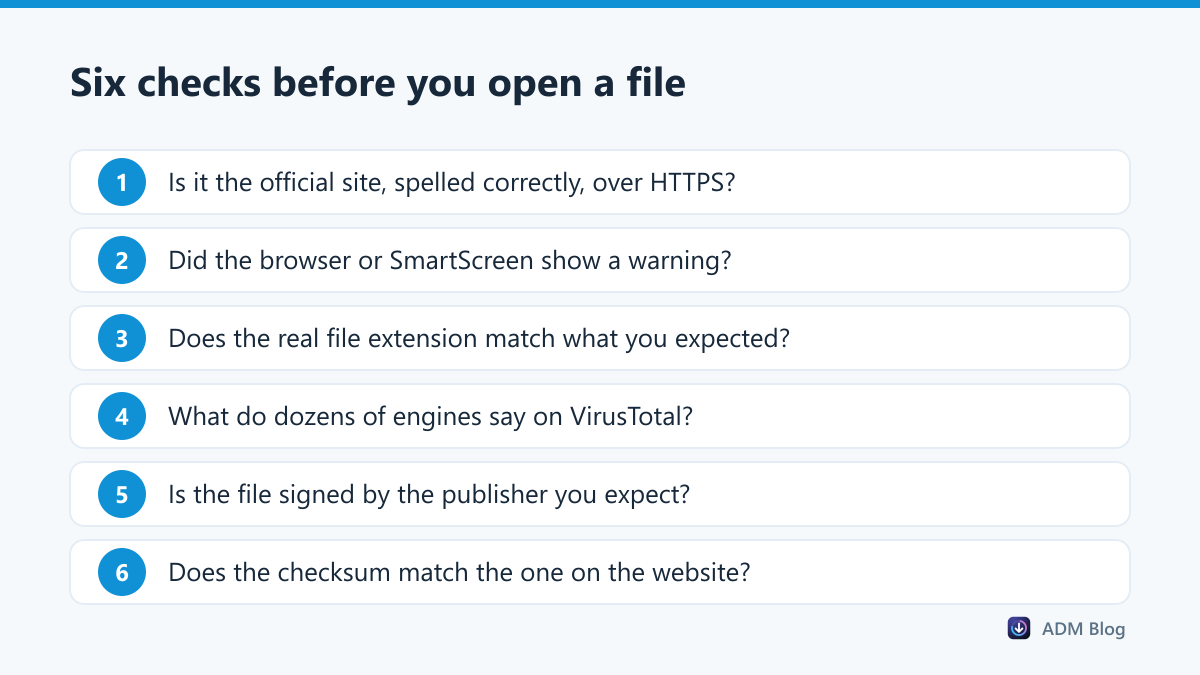
1. Check where the file comes from
The source matters more than anything else. A file from the developer’s own website is far safer than the same file from a random mirror or download portal.
- Look at the address bar. Make sure the domain is spelled correctly and not a lookalike with an extra letter or a different ending.
- Check that the page and the download use HTTPS.
- Beware of pages full of big green “Download” buttons. Many are adverts that lead to something else.
- Avoid portals that wrap the real installer in their own setup program with “recommended offers”.
If you reached the page through a search advert, an email or a message from someone you do not know, close it and search for the developer’s site yourself. Fake download pages often buy adverts for popular program names.
We cover safe choices for download tools in our guide to picking a download manager for Windows 11.
2. Take browser and Windows warnings seriously
Chrome and Edge check downloads against lists of known dangerous files and sites, and Windows adds its own SmartScreen check when you run a program. A warning that a file is dangerous means delete it. A warning that a file is uncommon is weaker: it only means few people have downloaded it. Our guide to Chrome blocking downloads explains each message. Keep your protection level at Standard or Enhanced, as described on Google’s Safe Browsing page.
3. Check the real file extension
Windows hides file extensions by default, which lets attackers name a program invoice.pdf.exe so that it looks like invoice.pdf. Turn extensions on in File Explorer: in Windows 11 choose View > Show > File name extensions. If a document or photo turns out to end in .exe, .scr, .bat, .js or .vbs, do not open it.
4. Scan it with VirusTotal
VirusTotal checks a file or link with dozens of antivirus engines at once. Upload the file before opening it, or paste the download link. Reading the result:
- No detections: a good sign, though brand-new malware can slip through.
- One or two detections from lesser-known engines: often a false alarm, common with small free tools. Combine with the other checks.
- Many detections, especially with the same malware name: delete the file.
5. Look at the digital signature
Right-click an installer, choose Properties and open the Digital Signatures tab if it exists. A valid signature from the publisher you expect is a strong sign the file is genuine and unchanged. A missing signature is common for small and free tools and is not proof of malware on its own, but it means the other checks matter more.
6. Compare the checksum
Many projects publish a SHA-256 checksum next to the download. In PowerShell, run Get-FileHash .\setup.exe and compare the result with the published value. Microsoft documents the command on its Get-FileHash page. A match proves you have exactly the file the developer released; we used the same check in our large file download guide.
Red flags and good signs
| Red flag | Good sign |
|---|---|
| Lookalike domain or plain HTTP | Official site over HTTPS |
| “Dangerous file” warning | No warning, or only “uncommon file” for a new release |
| Document that ends in .exe | Extension matches what you expected |
| Many VirusTotal detections | Clean or one isolated detection |
| Installer asks to add toolbars or other apps | Installer only installs what you asked for |
| Checksum does not match | Checksum matches the published value |
What to do if you already opened a bad file
- Disconnect from the internet to stop anything from spreading or sending data.
- Run a full scan with Microsoft Defender or your antivirus.
- Change important passwords from a different, clean device.
- Uninstall anything you do not recognise in Settings > Apps.
Downloading safely with a manager
A download manager does not replace these checks, and it does not bypass Windows security: files it saves are still scanned as usual. Advanced Download Manager simply fetches the link you choose, faster and with resume support, and its browser add-on passes links to the app on your own PC without sending them to any server.
Frequently asked questions
Is a file safe if my antivirus found nothing?
Usually, but not always. Combine the scan with the source and signature checks, especially for programs.
Are PDF and Office files safe to open?
They are safer than programs, but documents can contain malicious macros or links. Never enable macros in a document you did not expect.
Can a zip file contain a virus?
Yes. A zip can hold any file type. Scan the zip or its contents before opening what is inside.
Is it safe to download from download portals?
Some are fine, but many add their own installers or adverts. Prefer the developer’s official website whenever possible.
Checking whether a file is safe to download takes a couple of minutes: verify the source, respect warnings, reveal the extension, scan, and compare the signature or checksum. Make it a habit, and you will rarely have to wonder whether something was really safe to download.