
A download failed forbidden message means the server looked at your request and said no. Nothing is broken on your computer: the file exists, your connection works, and the browser did its job. What failed is permission. The web calls this a 403 response, and the good news is that most causes are easy to identify once you know what the server is objecting to.
What forbidden means
When your browser asks for a file, the server can answer with the file or with a status code. 403 Forbidden means “I understood the request and I refuse it”, which is different from 404 (the file does not exist) and from 401 (you need to authenticate). Mozilla’s reference on the 403 Forbidden status describes the distinction.
Chrome reports it as Failed – Forbidden in the downloads list, and Google’s own download error guide suggests signing in to the site or asking the owner, which is a good summary of the two common causes.
Seven fixes for a download failed forbidden error
1. Get a fresh link
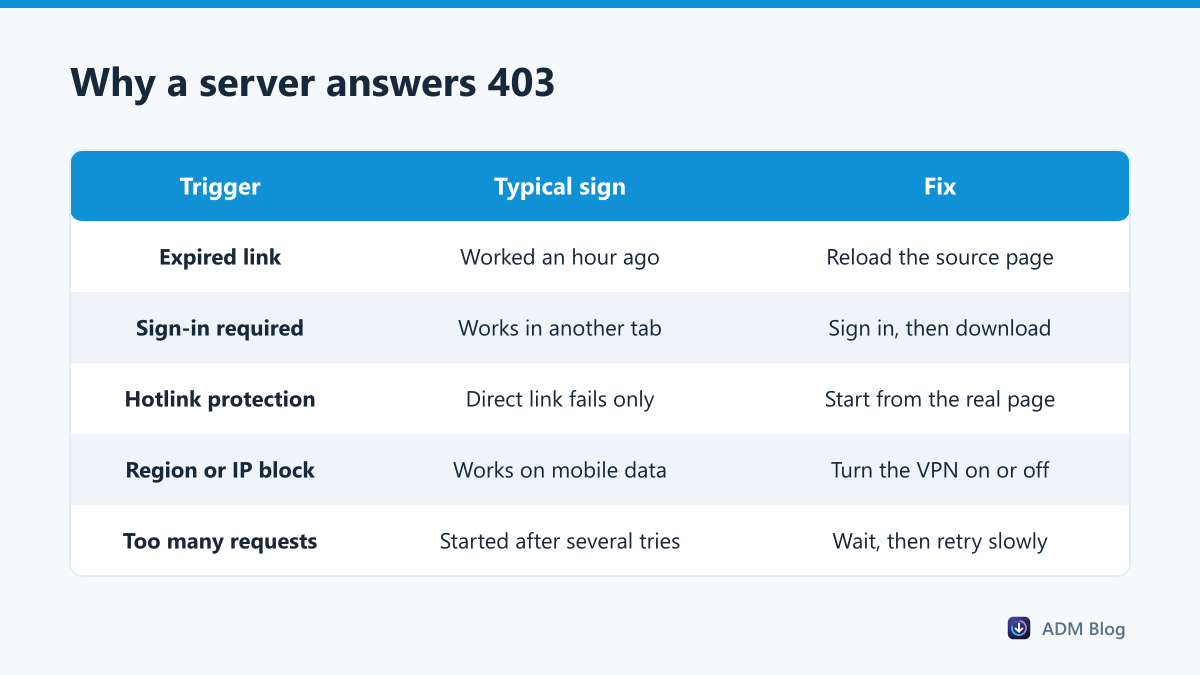
Most download links from file hosts, cloud storage and shops are signed and expire after minutes or hours. Go back to the page you started from, reload it, and click the download button again instead of reusing the old link.
2. Sign in first
Files behind an account check return 403 to anyone who is not signed in. Open the site, sign in, and start the download from inside the account. If you were signed in yesterday, the session may simply have expired.
3. Start from the page, not the direct link
Many servers use hotlink protection: they only serve the file when the request comes from their own page. A link copied out of the page, pasted into a new tab, or shared in a chat will fail. This is also why a download manager sometimes gets a 403 where the browser does not, and why starting the download with the right-click menu from the original page works.
4. Check your VPN and location
Some files are restricted by country, and some servers block entire data-centre IP ranges, which includes most VPN exit nodes. Try with the VPN off, then with a different location.
5. Slow down
Servers that see many rapid requests from one address sometimes answer 403 instead of a rate-limit message. If you started several downloads at once, cancel them, wait a few minutes and run them two or three at a time, as suggested in our guide to downloading multiple files at once.
6. Clear the site’s cookies
A stale session cookie can make the server treat you as an invalid user. Clear cookies for that one site, reload, sign in again and retry.
7. Confirm the file is still public
Shared cloud files lose access when the owner changes permissions. On Google Drive the wording differs by cause: a permissions problem asks you to request access, while a popularity limit shows the download quota exceeded message instead.
Forbidden or something else?
| Message | Meaning | Where to look |
|---|---|---|
| Failed – Forbidden | Server refused the request | Link age, sign-in, VPN |
| Failed – Network error | Connection interrupted | Network error guide |
| Failed – Needs authorization | Credentials required | Sign in on the site |
| Failed – Virus scan failed | Security check did not pass | Virus scan failed guide |
| Download blocked | Browser or Windows blocked it | Blocked downloads guide |
How to confirm it really is a 403
The word “Forbidden” in the downloads list is usually enough, but when a download fails silently it helps to see the server’s answer directly. Two quick ways:
- Open the link in a new tab. A 403 normally shows an error page from the site, often styled by the host, rather than starting a download.
- Ask for the headers only. In PowerShell,
curl.exe -I "https://example.com/file.zip"prints the status line without downloading the file. A line containing403confirms it;404means the file is gone instead.
Knowing the exact code saves time, because a 404 and a 403 lead to completely different fixes: one needs a new location, the other needs permission.
When you download outside the browser
A download manager makes its own request to the server, so a link that depends on your browser session or on the referring page can be refused. Two habits avoid this:
- Send the link from the page itself with the right-click menu rather than pasting a copied URL.
- Refresh the page and send the link again when a transfer has been sitting in the queue for hours.
Advanced Download Manager adds a “Download with ADM” entry to the context menu for exactly this reason. One detail worth knowing: its Retry button reuses the link it already has, so when the link has expired or depends on your browser session, send it again from the page rather than retrying the old entry.
Frequently asked questions
Why did the same link work an hour ago?
It was almost certainly a signed link with a short lifetime. Reload the source page for a new one.
Does a 403 mean I am blocked from the whole site?
Not necessarily. It applies to that request. If the pages load but the file does not, the protection is on the file.
Can a VPN fix a forbidden download?
Sometimes, when the file is geo-restricted. Just as often the VPN causes it, because its IP range is blocked. Test both ways.
Is it worth retrying a forbidden download?
Only after changing something, such as a fresh link or a sign-in. Repeating the identical request returns the same refusal.
A download failed forbidden error is a conversation with the server, not a fault in your setup. Refresh the link, sign in, start from the original page, and check your VPN. One of those four solves almost every case.