
The progress bar fills, the speed drops to zero, and then nothing happens. A download stuck at 100% is one of the most confusing download problems, because every byte has already arrived. The file is on your disk; what is missing is the last step, where the browser hands the file over to Windows. This guide explains what that step involves and how to get past it.
What is still happening at 100%
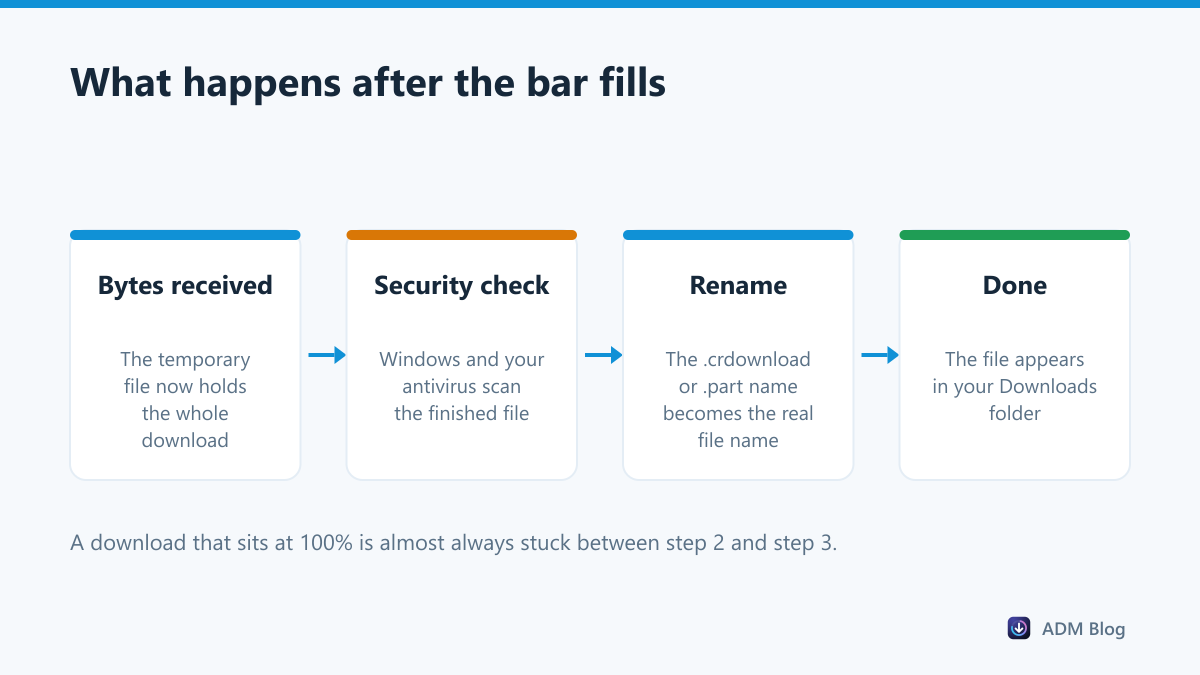
Your browser does not save straight to the final name. It writes to a temporary file, and only renames it once three things are done: the transfer is complete, the security check has passed, and the destination is writable. That is why a crdownload file can sit at full size for minutes.
Six reasons a download stuck at 100 happens
| Cause | Clue | Fix |
|---|---|---|
| Antivirus scan | Large file, disk busy, CPU high | Wait, then check the antivirus log |
| Blocked by security | “Virus scan failed” appears later | Check quarantine, re-download from source |
| Disk full | Download folder drive nearly full | Free space, then retry |
| Folder not writable | “Insufficient permissions” | Save to Downloads or Desktop instead |
| File already open | Same name open in another program | Close it, retry the download |
| Browser glitch | Only one download is affected | Cancel, restart the browser, retry |
Fix it in order
1. Give it two minutes
On a slow drive, a 5 GB file can take a while to scan. Watch Task Manager: if the disk is busy, something is still working. Interrupting it only means starting again.
2. Check your antivirus
Open your security software and look at its recent events. If the file was quarantined, the browser will never finish the rename. Microsoft explains how Windows treats files from the internet in its Attachment Manager article. If the file is one you trust from an official source, allow that single item rather than switching protection off; our guide to Chrome blocking downloads shows how.
3. Make sure there is room
The rename step can need as much free space as the file itself. If the drive is nearly full, clear some space or change the download location to a larger drive and start again.
4. Close anything using the file name
Downloading the same installer twice while the first copy is running will block the rename. Close the program, then retry.
5. Cancel and restart the browser
If one download is frozen while others work, cancel it, close the browser completely, reopen it and download again. A restart clears the stuck internal state.
6. Download it with a different tool
If the same file sticks every time, take the browser out of the loop. Advanced Download Manager writes the file itself, outside the browser’s own download pipeline, and keeps every item in one list with its status, so a download that keeps sticking is easy to spot and retry from there. It is also faster on servers that limit each connection, as explained in how a download accelerator works.
Edge, Firefox and the same symptom
The behaviour is not unique to Chrome. Edge shares Chrome’s engine and its temporary files, so the causes are identical. Firefox writes a .part file instead and hands the finished download to the same Windows scanning interface, which means a stall at the end looks the same there too.
That shared design is useful for diagnosis: if the file sticks at 100% in every browser you try, the problem is on the Windows side, in the antivirus or the disk, not in the browser you happen to prefer.
Special case: the file is there but unusable
Sometimes the rename succeeds and the file still will not open. That is a different problem: the data itself is damaged. Check the file size against the one the website lists, and compare the checksum if the publisher provides one. Both steps are described in our guide to downloading large files.
- Much smaller than expected: the transfer ended early.
- Right size, will not open: the content is corrupted, download it again.
- Right size, opens with a warning: let the program repair it if it offers to.
Stopping it from happening again
Most of the causes above are avoidable with a few habits:
- Keep one security tool. Two real-time scanners fighting over the same file is the classic reason a download hangs at the last step.
- Leave headroom on the drive. Keep at least twice the file size free, because the final rename may need the space twice over.
- Download to a local folder. Network shares and removable drives make the hand-over far more fragile.
- Do not reuse the name of a running program. Close the old installer before you download the new one.
- Use a tool that retries a single part. Losing a whole download because of one failed step is the browser’s weakness, not an inevitability.
Frequently asked questions
Why does my download stop at 100% in Edge too?
Edge uses the same engine as Chrome and the same temporary files, so the causes and fixes are identical.
Can I just rename the temporary file?
No. Renaming cancels the browser’s own rename step and usually leaves you with an unusable file. Let the browser finish, or download again.
Is it safe to turn off my antivirus to finish a download?
No. Allow the single file if you trust it, and scan it afterwards. Switching protection off exposes everything else you do.
Does a download stuck at 100 mean the file is complete?
The bytes have arrived, but the file has not been handed over yet. Until the rename happens, treat it as unfinished.
A download stuck at 100% is almost never a network problem, so retrying the same link rarely helps. Look at the scan, the disk and the folder instead. Fix the step that is blocked and the download finishes in seconds.