
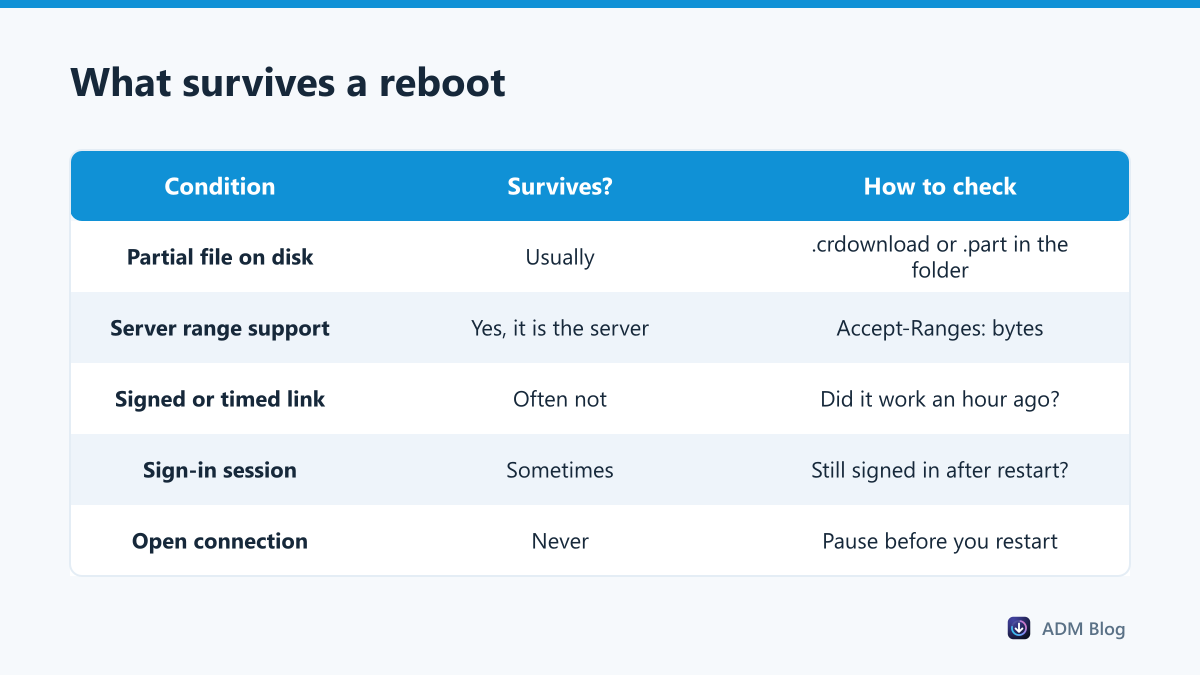
Whether you can resume download after restart depends on three things, and only one of them is on your computer. The partial file has to still be on disk, the server has to support sending the rest of a file, and the link has to still be valid when you come back. Get all three and the transfer continues from where it stopped. Miss any one and it starts again from zero, no matter which program you use.
The three conditions
- The partial file. Chrome and Edge keep unfinished data in a
.crdownloadfile; Firefox uses a.partfile. If that file is deleted, there is nothing to continue. - Range support on the server. To continue, the browser asks for “everything from byte N onwards”. Servers that support this answer with a partial response; servers that do not simply send the whole file again. MDN’s guide to HTTP range requests explains the mechanism.
- A link that still works. Many download links are signed and expire after minutes or hours, and some depend on your sign-in session. A reboot does not break them, but the time spent rebooting can outlast them.
How to resume download after restart in each browser
Chrome and Edge
Open the downloads page with Ctrl+J. An interrupted item shows either Resume or Retry, and the difference matters: Resume continues from the partial file, Retry starts over. Reports differ on whether the partial file is always kept when the browser is closed, so the safe habit is to check for Resume before you shut down rather than after. Our explainer on the crdownload file covers what that temporary file holds and when it is safe to delete.
Firefox
Firefox lets you pause a download from the downloads panel and continue it later. After a restart, open the Library window with Ctrl+Shift+Y and look for the entry there. As with Chrome, continuing only works when the .part file is still present and the server supports partial transfers. Our guide to the Firefox part file covers that file in detail.
Restart, shutdown and sleep are not the same
| What you do | What happens to the download | Best move |
|---|---|---|
| Restart or shut down | Connection closes; the browser exits | Pause first, check for Resume afterwards |
| Sleep | Process survives, connection usually drops | Expect a failure; resume when you wake the PC |
| Windows Update restart | Same as a restart, but unplanned | Set active hours while a big file is running |
| Closing the laptop lid | Usually sleep, depending on power settings | Check what the lid is set to do |
| Browser crash | Connection lost, partial file usually kept | Reopen and check the downloads page |
Sleep catches people out most often. The download looks paused when the PC wakes, but the server closed the connection long ago, so the browser has to ask again — and whether that works depends on the same three conditions.
Check before you reboot, not after
Thirty seconds of checking saves an hour of downloading:
- Pause the download first. A clean pause tells the browser to keep the partial file and remember where it stopped, which is more reliable than letting a restart cut it off.
- See whether the server supports resuming. In PowerShell,
curl.exe -I "https://example.com/file.zip"prints the response headers.Accept-Ranges: bytesmeans a resume should work. - Note where the file came from. If the link expires, you will need to start from the original page again, so keep that page in a bookmark.
- Do not clear browsing data on the way out. Clearing download history removes the entry you need to resume from.
If the server does not support ranges, there is no way to continue later. The only real choice is to let the download finish before restarting.
Where a download manager fits
A download manager does not change the three conditions — the server still decides whether a file can be continued, and an expired link is still expired. It is worth being precise about what Advanced Download Manager does here: it keeps its download list after a restart, so the item is still there with its link, but it does not continue a partial file. A retry downloads the file again from the beginning, and a link that depended on your browser sign-in may need to be sent again from the page.
What it can do is shorten the window. On servers that allow it, ADM splits a file across several connections, which can make a long download finish well before you need the PC back. For deliberate breaks within a session, our guide to pausing and resuming downloads covers each browser.
Frequently asked questions
Why did my download start over even though I saw Resume?
The server answered the resume request with the whole file instead of the remaining part. That happens when the file changed, the link expired or the server stopped supporting ranges.
Can I resume a download in a different browser?
No. Each browser tracks its own partial file and its own progress. Starting in another browser always begins from zero.
Is it safe to delete a .crdownload or .part file?
Yes, once you have given up on resuming. Deleting it removes the partial data, so the next attempt starts from the beginning.
Does sleep mode pause a download safely?
Not reliably. The connection usually drops during sleep, so treat it like an interruption and check for Resume when the PC wakes.
You can resume download after restart only when the partial file survives, the server supports ranges and the link is still valid. Check the first two before you reboot, keep the source page handy for the third, and anything else is best left to finish first.